This manual explains, step by step and with the app's real screens, how to use Bokono for your own health and your children's: your medical record, your doctors, your appointments, your messages, your prescriptions, your health coverage and emergencies.
In an emergency, the red "Emergency" button on the home screen always works, even without a subscription, without payment and without a verified account. In immediate danger, also call emergency services.
Installing the app and creating your account
Registration takes about 10 minutes. Have an official ID document ready and, if possible, a front-facing photo of yourself.
Installing Bokono on an Android phone
- Open Chrome and go to bokono-rdc.net/en/download.
- Tap Download for Android and wait for the download to finish (about 50 MB).
- Open the downloaded file. If Android asks, tap Settings → Allow from this source, go back, then tap Install.
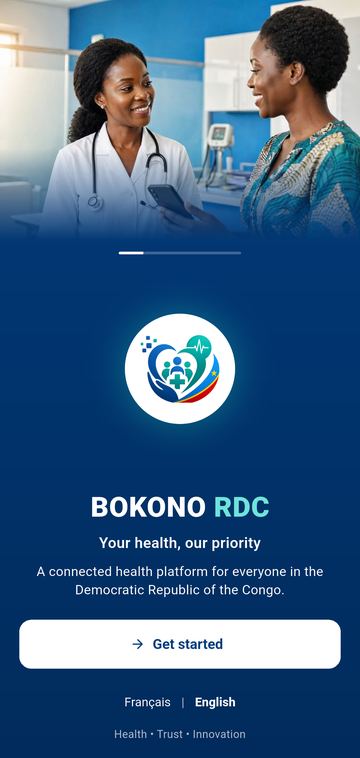
- Open Bokono. Choose the language at the bottom of the screen (Français or English), then tap Get started.
Registration is free. The subscription is only paid once your account has been approved, directly in the app by mobile money.
Creating your patient account
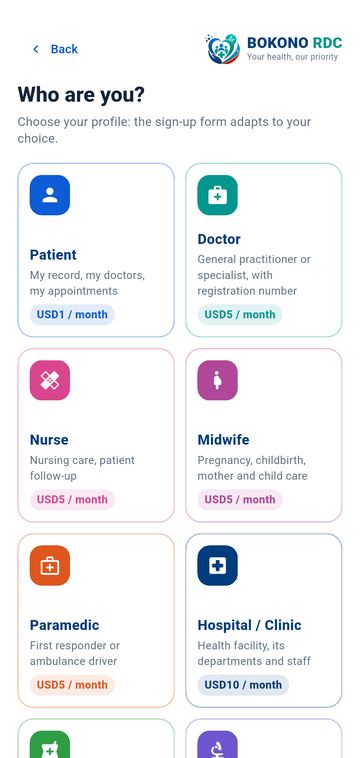
- On "Who are you?", tap Patient.
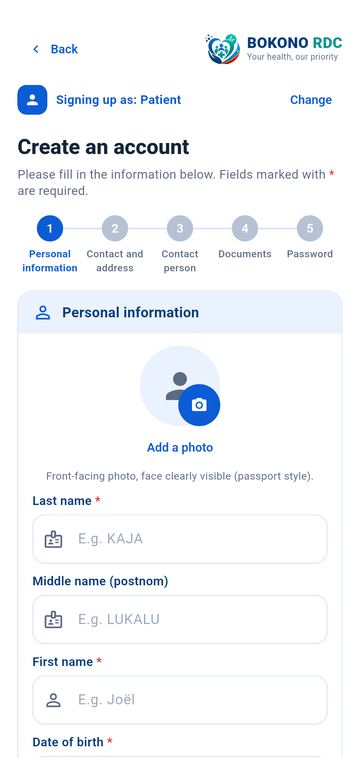
- The form has 5 steps. Fields marked with a red asterisk () are required; tap Next* to move to the next step.
- Personal information: a front-facing photo (like a passport photo), your last and middle names (written automatically in CAPITALS), your first name (first letter capitalised), date of birth, sex at birth and nationality.
- Contact details and address: your phone number (the +243 code is already shown: type only the 9 digits, without the 0), your email address, then your province, city or territory, commune and neighbourhood.
- Contact person: a relative who can be reached if needed.
- Documents: photograph your identity document (identity card, voter card, passport or other official document; front, and back if it has one), flat, readable and without glare. It can also be added later from Profile → My identity.
- Account: a password of at least 10 characters, with at least one letter and one digit. Read and accept the terms of use, then tap Create an account.
- If a confirmation email is sent to you, open the link it contains, then sign in. Nothing received? Check your spam folder or tap Resend the email.
A Bokono agent checks your ID document. You are notified in the app as soon as your account is approved: the Verified account badge then appears on your card.
Signing in and protecting the app
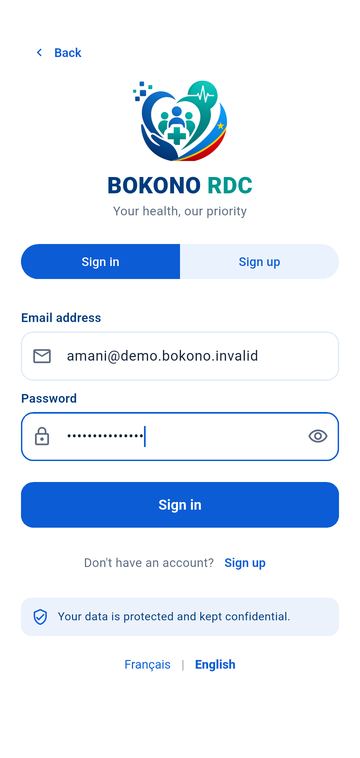
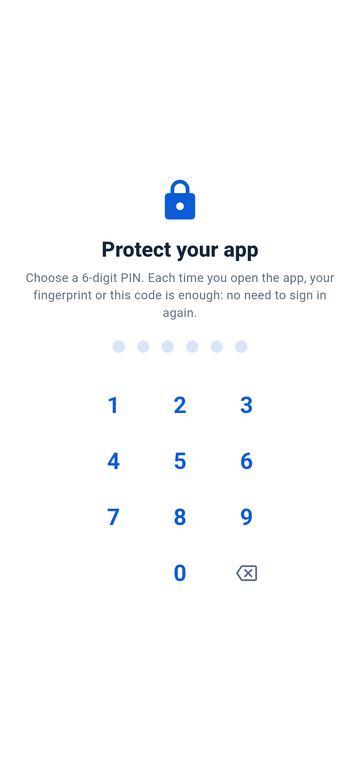
Once your account has been created, you sign in with your email address and password. After that, a 6-digit code (or your fingerprint) is enough to reopen Bokono.
- On the Sign in screen, enter your email address and password, then tap Sign in. The eye icon on the right shows or hides the password.
- "Protect your app": type a 6-digit code, then type it a second time to confirm it. If your phone has a fingerprint reader, turn on Also unlock with my fingerprint.
- Right after that, Bokono asks for access to the microphone (calls and teleconsultations), location (emergencies) and full-screen calls (answering even when the phone is locked). Tap Continue and accept.
- Each time you open the app, or after one minute away from it, place your finger or type your code. After 5 wrong codes, Bokono signs you out for security: sign in again with your password.
One phone at a time. If your account is already open on another device, Bokono shows "Account already signed in". Continue here signs the other device out; Cancel keeps it. Never share your password or your code.
The home screen and navigation
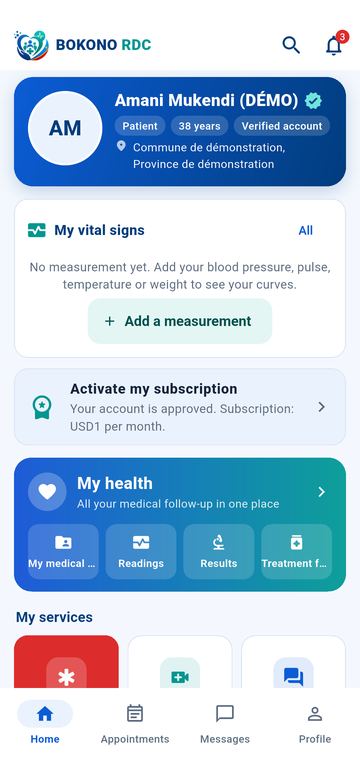
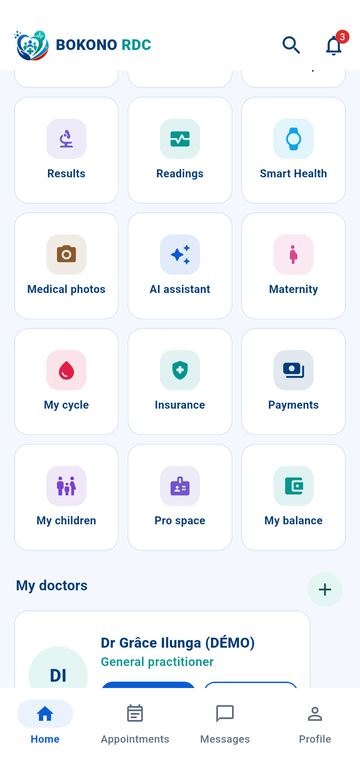
The home screen brings together everything you need; the bottom bar takes you from one area to another in one tap.
| Screen area | What it is for |
|---|---|
| Magnifier (top) | Search for a registered person or organisation (doctor, pharmacy, laboratory…) |
| Bell (top) | Your notifications; the red number shows unread ones |
| Card with your name | Your photo, age, commune and the "Verified account" badge |
| Activate my subscription | Shown until the subscription is paid |
| My health | Shortcuts to My record, Readings, Results and Treatment follow-up |
| My services | Emergency (red), Teleconsultation, Connect, My medical record, Prescriptions, Treatment follow-up, Results, Readings, Smart Health, Medical photos, AI assistant, Maternity and My cycle (female records), Insurance, Payments, My children |
| My doctors | Your doctors, with the Message and Book buttons; the + button adds a doctor |
| Recent activity | The latest events; See all opens the full list |
Bottom bar: Home, Appointments, Messages, Profile. On other screens, the arrow at the top left goes back and the house returns to the home screen. The phone's "back" button also works.
Identity, personal information and medical record
Your medical record belongs to you: you can view it at any time, and a caregiver only accesses it with your consent or during a confirmed appointment.
Verifying your identity
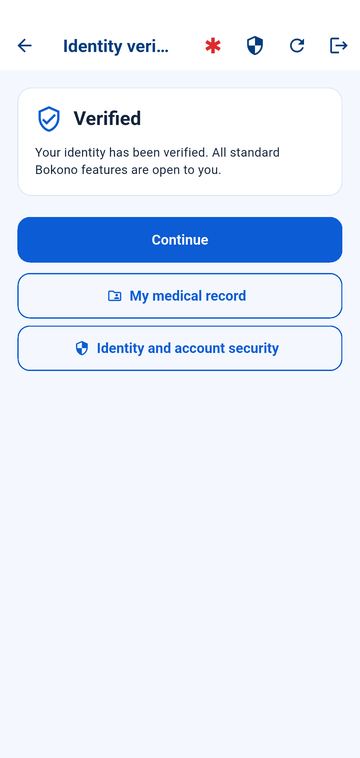
- Open Profile → My identity. Until the document is verified, the screen shows what is missing; once verified, it shows Verified.
- If an agent asks for a new photo, the screen explains why: take the photo again, flat, legible and without glare.
- Everyday services (choosing a doctor, appointments, subscription) open after verification. Emergency and your record always remain accessible.
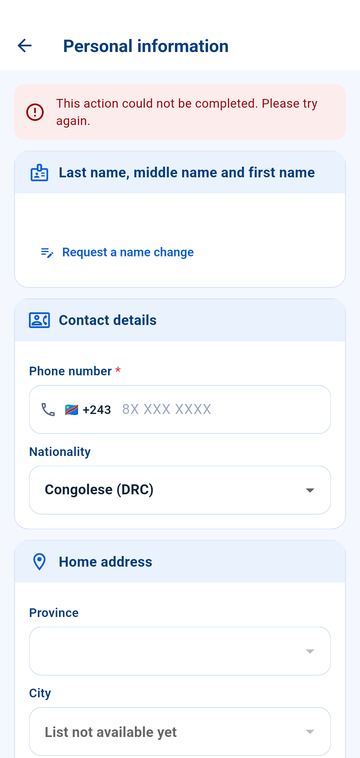
Updating your information: Profile → Personal information for your phone, nationality, address and contact person. Your name cannot be changed directly: tap Request a name change; an agent checks before applying it.
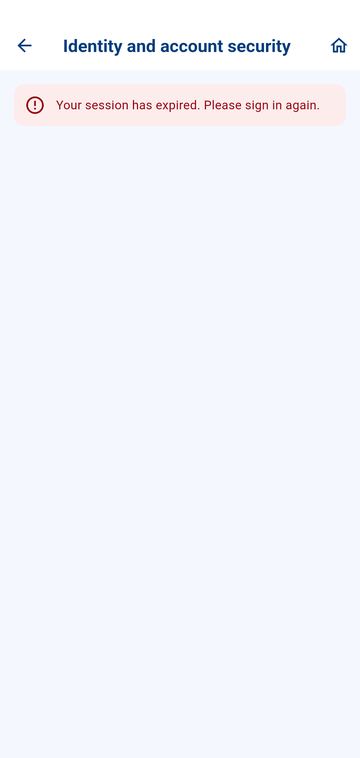
Identity and account security (Profile → Identity and account security)
- My Bokono identity: a unique identifier (BKI-…) that stays the same if you change phone, email or identity document.
- Verify my number: Bokono sends a 6-digit code by SMS; enter it to confirm the number is yours. A verified number can belong to only one account. To change number, verify the new one: your account and record stay the same. Bokono never asks you for this code by phone. As long as no SMS provider is in service, the screen says so and SMS verification is not possible.
- Identity documents: you can attach several documents (identity card, voter card, passport) to your single identity.
- My roles: one account can hold several verified roles (for example patient and doctor); no need to create another account.
- You may already have an account: if your details look like those of an existing account, Bokono tells you without showing anything about that account. Tap It is my former account: recover it: an agent checks your identity before anything is linked; your records are then brought together, with nothing lost. Emergency always remains available.
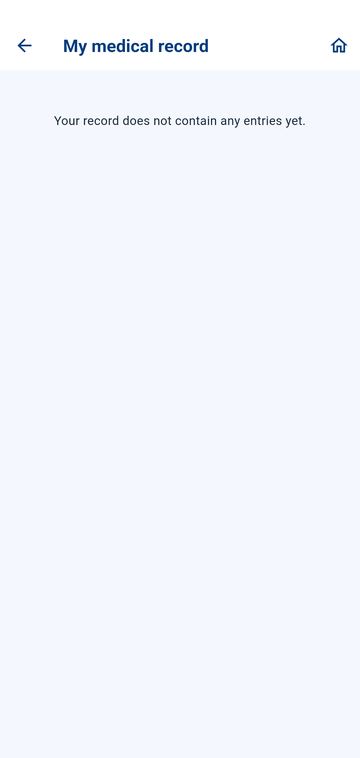
My medical record (home → My medical record)
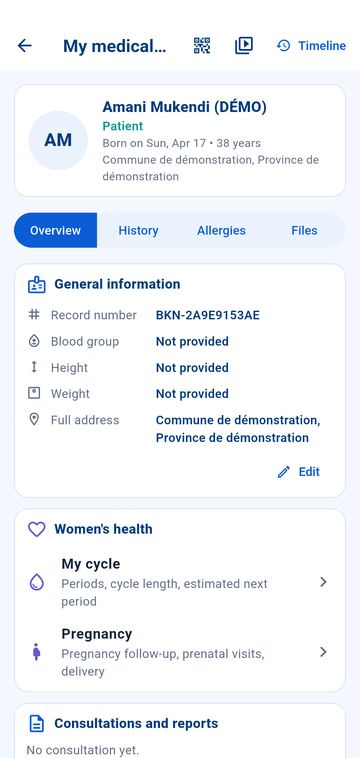
- Overview: record number, blood group, height, weight, address (Edit button) and insurance or mutual.
- History, Allergies and Files tabs (documents added by you or your caregivers).
- The access history shows who viewed your record and when; the timeline retraces your care in order.
- Women's health (female records): My cycle (periods, cycle length, estimated next period) and Pregnancy (pregnancy follow-up, prenatal visits, delivery).
- Consultations and reports: your latest consultations, with the doctor, the date and "report available" or "report pending"; tap a consultation to read its report, or All consultations.
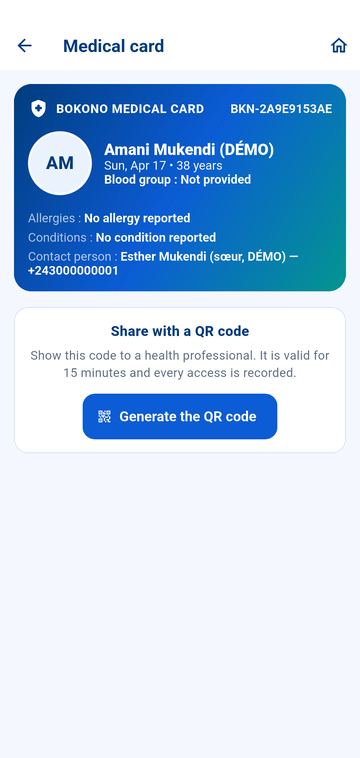
Medical card and QR code (QR icon at the top of the record, or Profile → Medical card): your card summarises the essentials for a caregiver (allergies, conditions, contact person). Tap Generate the QR code and show it to the professional: it is valid for 15 minutes and each reading is recorded.
Choosing a doctor and booking an appointment
Nothing happens without your consent: Bokono proposes, you accept or decline; the doctor accepts or declines your request, giving a reason.
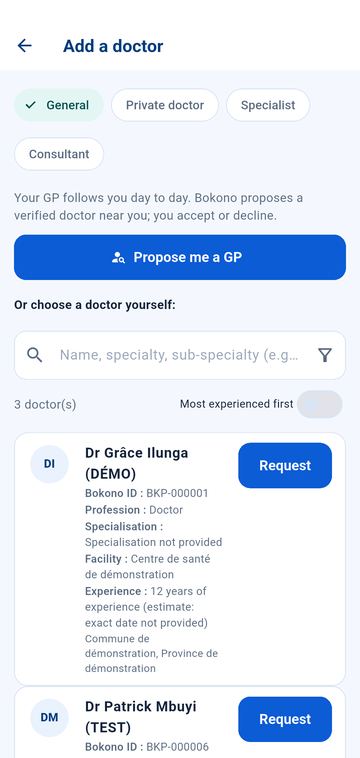
Adding a doctor (home → My doctors → +)
- Choose the type of follow-up at the top: General, Private doctor, Specialist or Consultant.
- General practitioner: tap Propose me a GP. Bokono proposes a verified doctor near you; tap Accept or Decline.
- Or choose yourself: type a name, a specialty or sub-specialty, a facility or a Bokono ID. The filter button narrows by specialty, field and area; Most experienced first sorts by declared years of practice (it is not a quality ranking).
- Each profile shows the Bokono ID, profession, specialisation, facility and experience. Tap Request, add a message, then Send request. For a specialist or consultant, describe the mission (at least 10 characters).
- Follow your requests at the top of the screen: pending, accepted, declined (with the doctor's answer). Follow-up by an accepted private doctor is paid with the Pay button, by mobile money.
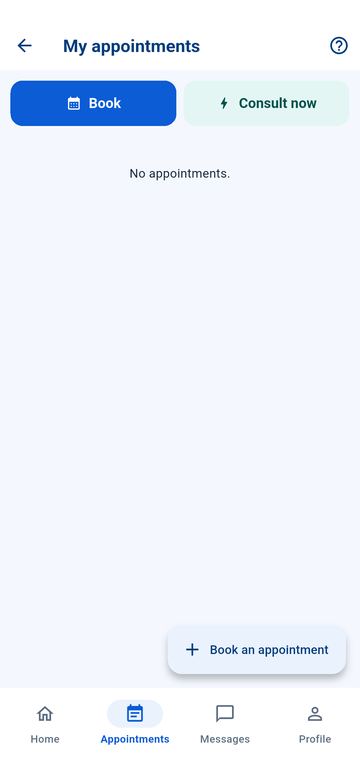
Booking an appointment (bottom bar → Appointments, or Book on a doctor's card)
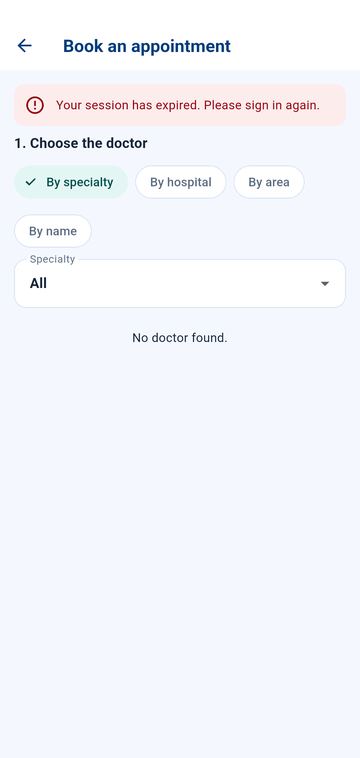
- Tap Book an appointment. Choose the doctor by specialty, hospital, area or name.
- Their calendar appears: consultation days and hours, and, in colour, the days with free slots (with their number). Choose the mode (video, audio or in person), the day, then the time.
- Check the summary, add a reason if you wish, then Send the request.
- The doctor is notified: they confirm, decline with a reason, or suggest another date or mode. You are notified and accept or decline the suggestion. Statuses: Requested, Accepted — please confirm, Confirmed, Cancelled, Completed, No-show.
- An appointment cannot be booked less than 10 minutes in advance. The ? button at the top explains each status.
Immediate consultation (Appointments → Consult now)
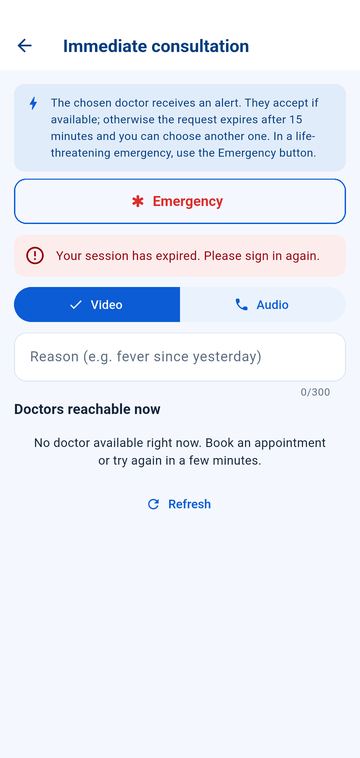
- The list shows the doctors reachable now (yours first). Choose video or audio, give the reason, then Request.
- The doctor receives an alert and accepts if available: the consultation starts (Join the consultation). Without an answer after 15 minutes, the request is cancelled and you can choose another doctor.
- This is not the emergency path: in a life-threatening emergency, use the Emergency button.
Your general doctor first. On your first visit to the home screen, the list of general doctors opens: choose yours. This choice is required before your first consultation (never for an emergency).
Messages and calls: Bokono Connect
Never use messages for an emergency: use the red Emergency button or call emergency services.
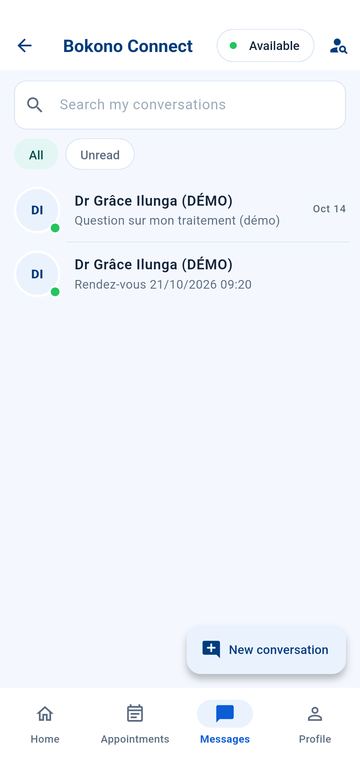
- Tap Messages in the bottom bar (or the Connect tile on the home screen). Conversations are listed with the most recent at the top, messages grouped by day; the All and Unread filters and the search bar help you find an exchange.
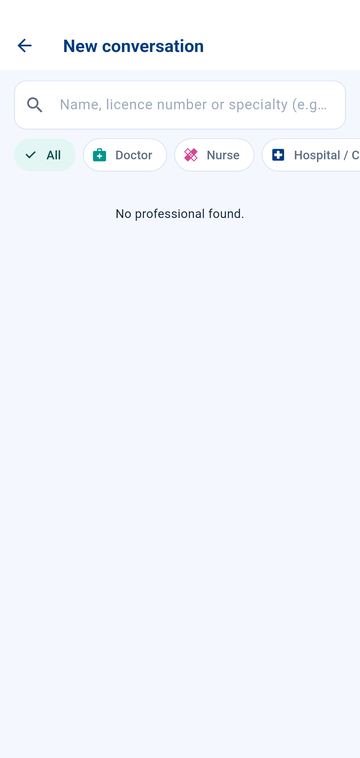
- New conversation: search for a registered person or organisation by name, profession or Bokono ID.
- The name and photo of the person you are talking to appear at the top of the conversation. You can send text, photo, document or voice message. Without a network, the message waits on the phone and is sent automatically when the network returns; it is never shown as "sent" before then.
- To call, tap the phone icon (audio) or the camera icon (video). The screen shows "ringing", "busy" or "unreachable". An incoming call rings even when the phone is locked: tap Answer in the notification. The call opens directly, with no intermediate screen and no Bokono code; the code is asked again after the call. No other window opens during a call. Calls are never recorded.
- The Available switch at the top of the Messages screen tells others whether you can be called right now (green or red dot).
Teleconsultation
- It starts from a confirmed audio or video appointment (or from the Teleconsultation tile on the home screen).
- Accept transcription of the consultation? Answer Yes or No. Transcription writes the conversation as text to help your doctor write the report; no audio or image is kept. Without your "Yes", the consultation goes ahead without transcription.
- Tap Join the consultation once your doctor has started it. At the end, the doctor taps End the consultation; the call stops.
- Your doctor's signed report arrives in My medical record → Consultations and reports, with the raw transcript (cannot be changed). My shares lists what you chose to share.
Prescriptions, treatments, results and readings
The home screen shows My vital signs: one curve per reading (blood pressure, pulse, temperature, oxygen saturation, glucose, weight…). Tap a reading to see its detailed trend. Values are shown as recorded; their interpretation belongs to your doctor.
Prescriptions (home → Prescriptions): each prescription signed by your doctor appears with its QR code. Show this code to the pharmacist: it contains no medical information, and the sale is confirmed by scanning it. The status shows what remains to be bought.
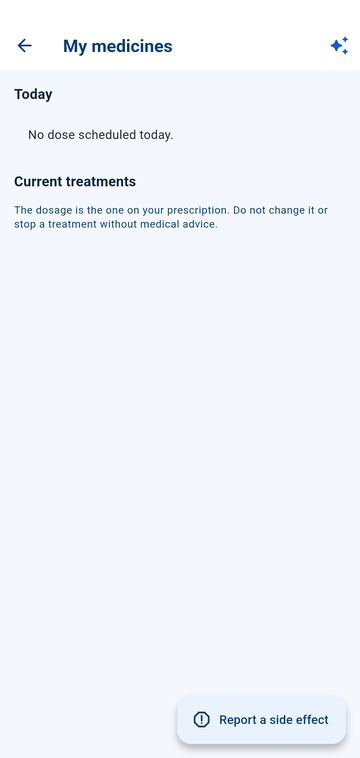
Treatment follow-up (home → Treatment follow-up): "Today" lists planned doses with their times; tick each dose. "Current treatments" shows the dosage from the prescription: do not change it and do not stop a treatment without medical advice. An unpleasant effect? Tap Report a side effect.
Never double a missed dose without medical advice.
Readings (home → My health → Readings)
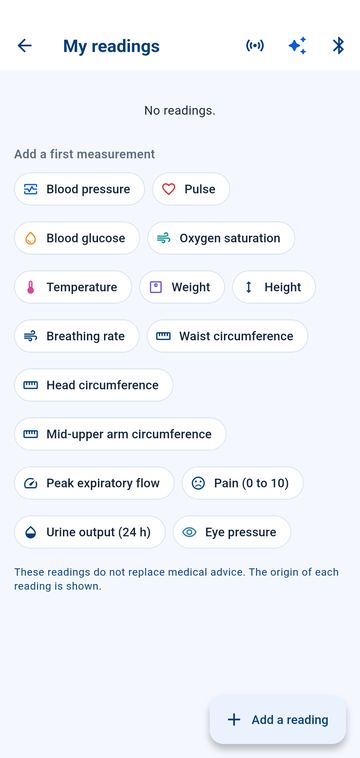
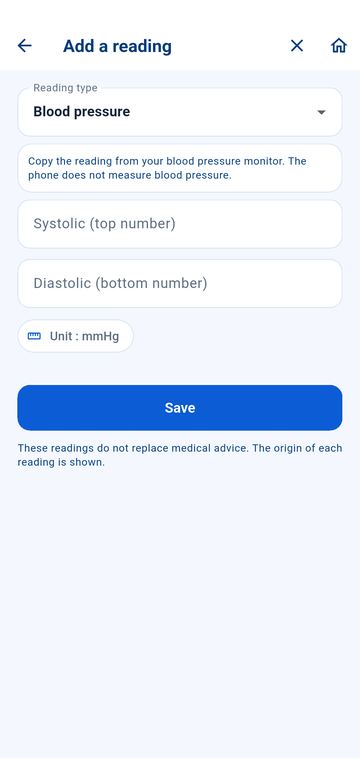
- Tap Add a reading or one of the suggested types: blood pressure, pulse, blood sugar, oxygen saturation, temperature, weight, height, breathing rate, eye pressure, waist circumference, head circumference, mid-upper arm circumference, peak expiratory flow, pain, urine output, sleep duration. The Glasgow score is entered by a professional only.
- Copy the reading from your device (e.g. blood pressure: top number, then bottom number). The unit is fixed to avoid mistakes. Tap Save.
- An unusual value first asks you to measure again. An alert is created only according to thresholds validated by the Bokono medical team, adapted to age; it is shown as Watch, Alert or Critical and goes to your doctor. With no alert, the value is "Normal". The phone never measures blood pressure by itself.
- BMI: calculated from your latest recorded height and weight; it is not a diagnosis.
- Monitoring plan: if your doctor has set one, the card shows the parameters to measure, the instructions and progress ("2 / 3 today"). A missed reading can trigger a reminder, within the limit set by the doctor; if planned, the doctor is then notified.
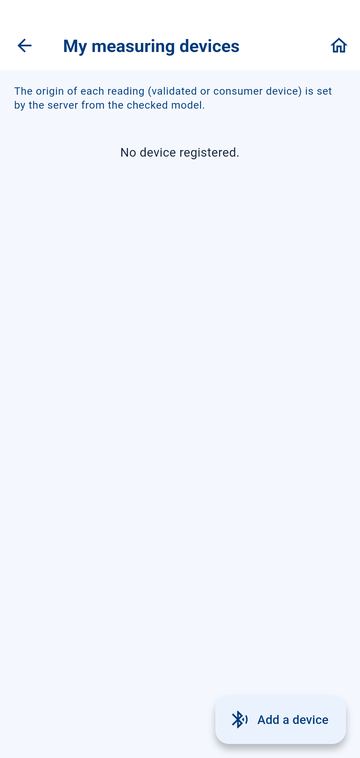
- Compatible Bluetooth device: Bluetooth icon at the top → Add a device. You always check the values before they are sent.
- The Smart Health icon at the top opens readings with the phone's sensors (see below).
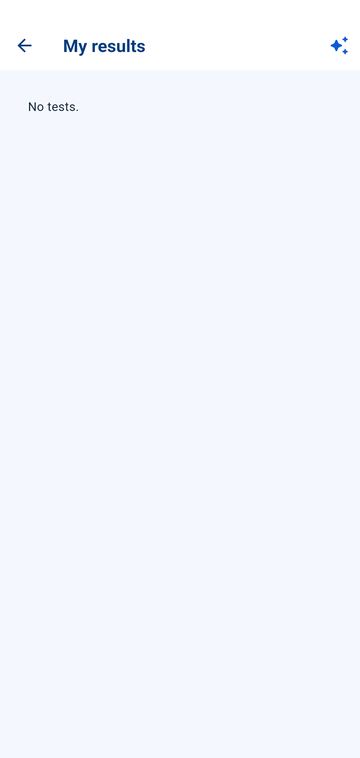
Test results: visible as soon as the laboratory validates them; a correction is always flagged.
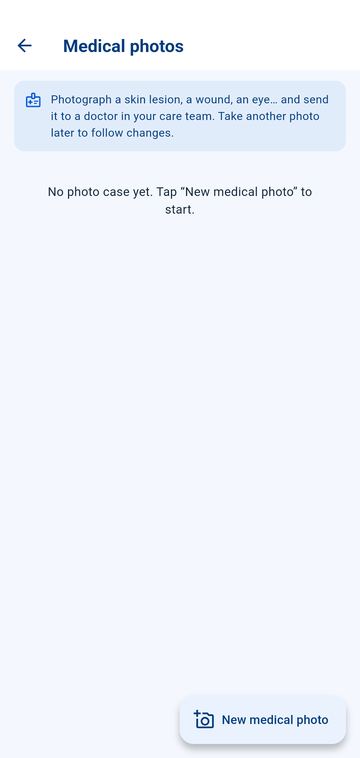
Medical photos: photograph a skin lesion, a wound, an eye… and send the photo to a doctor in your care team (New medical photo); take another photo later to follow progress.
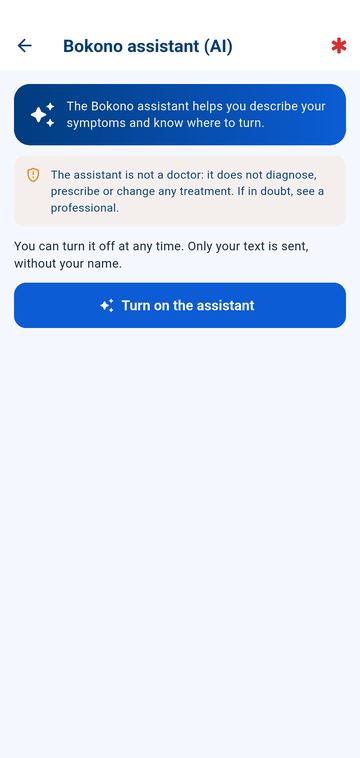
Bokono assistant (AI) (home → AI assistant): a conversation about your health questions. The first time, tap Turn on the assistant (only your text is sent, without your name). Type your question in Ask your health question… and send: the answer appears as in a messaging app ("The assistant is typing…" while it is prepared), and you can continue the exchange, as the assistant takes the previous messages into account. Each answer gives the suggested direction (self-care advice, talk to your doctor, see a doctor soon, or emergency) and, where useful, questions To ask your doctor. An answer did not come through? Tap Try again. The assistant stays within health topics, is not a doctor, does not diagnose and never changes a treatment.
Smart Health: your phone's sensors
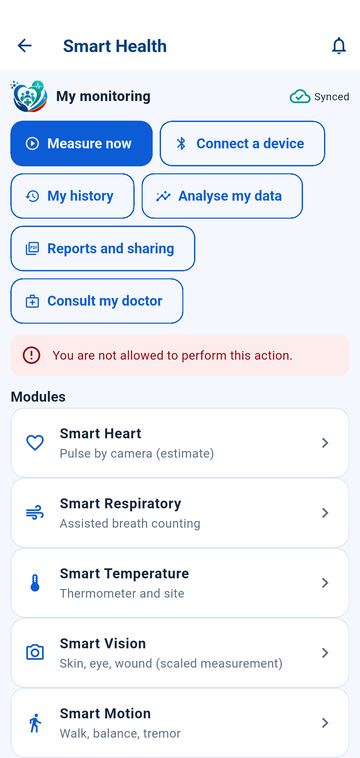
Smart Health tile in My services (or Readings → Smart Health icon). These tools use your phone's camera, flash and accelerometer. They give estimates or help you count: they are neither validated medical measurements nor diagnoses, and they do not replace a medical device. Each result is saved with its method, its quality and the label "Estimate" or "Entry".
- This phone's capabilities: the list of sensors present (camera, flash, accelerometer…). A sensor being present does not mean a measurement is validated.
- Pulse by camera (estimate): place your fingertip on the back camera and flash, without moving, for 30 seconds. A bar shows signal quality; a signal that is too weak gives no result. This is not an electrocardiogram. Method not intended for children and newborns.
- Assisted breath counting: at rest, watch the chest (or a baby's belly) and tap the button at each breath in for 30 or 60 seconds; the rate is calculated and saved as an entry.
- Thermometer and site: the phone does not measure temperature; note your thermometer's reading and where it was taken, or connect it via Bluetooth.
- Skin, eye, wound: a photo taken straight on, with a ruler placed next to it, gives an estimate of a wound's size and lets you follow how it changes.
- Walk, balance, tremor: guided tests (60, 30 and 15 seconds) with the accelerometer, designed for adults. Stay near a wall or a person for the balance test. Fall detection is not enabled.
- Health Connect: on request, imports readings that other apps or a watch stored in Health Connect (pulse, blood pressure, saturation, glucose, temperature, weight, height, breathing, steps). They are labelled "imported, unverified". Available when Health Connect is on the phone (built into Android 14 and later, otherwise the Health Connect app); Bokono installs and works without it.
- Sleep diary: you note bedtime and wake-up time, awakenings and how you feel on waking. A phone cannot diagnose sleep apnoea.
- Analyse my data: brings together alerts, missed readings from a monitoring plan and data to check (low-quality estimate, inconsistent reading), with simple statistical observations. These are not medical alerts.
- Reports and sharing: choose the period and parameters, then create a PDF report on the phone (you choose who to send it to) or Send to my care team to save it in your record.
Without a network, results stay on the phone and are sent when the network returns ("pending").
If you feel unwell, do not wait for a Smart Health result: use the Emergency button or call emergency services.
Insurance and mutuals
Home → Insurance.
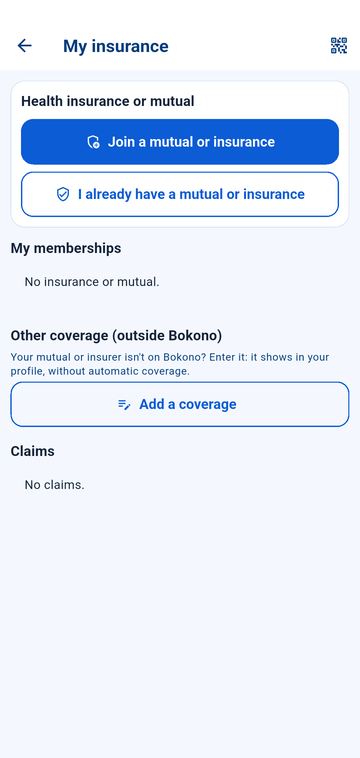
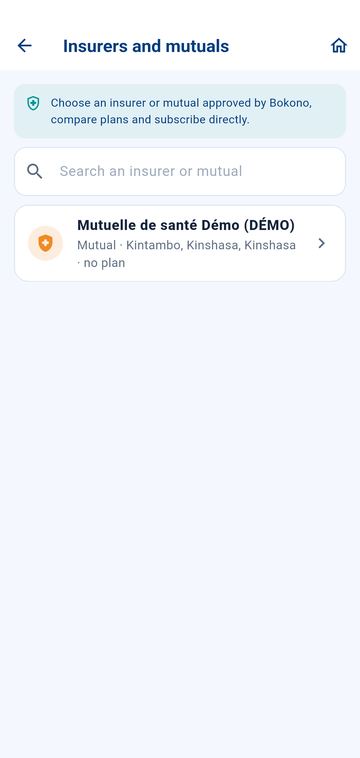
- Join a mutual or insurance opens the list of insurers and mutuals on Bokono: compare the benefits, then tap the plan you choose and Confirm subscription. The organisation reviews your request and activates your membership.
- I already have a mutual or insurance: choose My organisation is on Bokono (membership linked with your member number) or My organisation is not on Bokono (you enter your coverage details; it appears in your profile, without automatic cover).
- My health coverage shows your beneficiary number, validity, benefits and limits, what has already been used, dependants, partner facilities and your complaints. The QR icon shows your membership card to present to the facility.
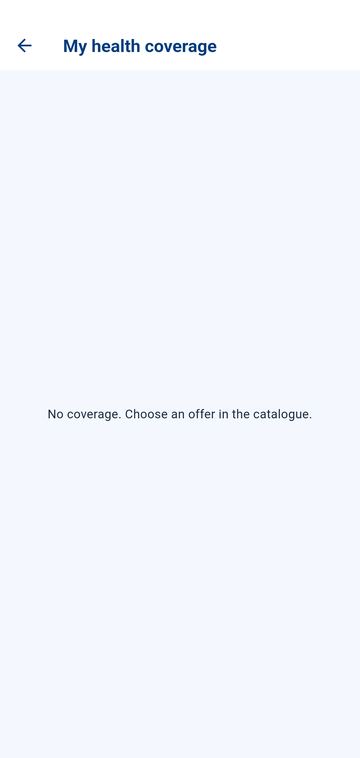
Active coverage does not guarantee that all care is covered: your contract's exclusions and limits apply. Emergencies never wait for a coverage check.
Maternity and cycle tracking
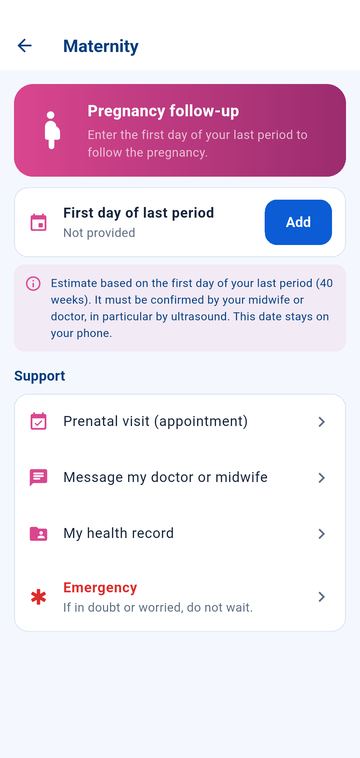
Maternity (home → Maternity): enter the date of your last period (Add) to follow the progress of your pregnancy. The estimate must be confirmed by your midwife or doctor; this date stays on your phone. Shortcuts: prenatal visit, message your doctor or midwife, health booklet, emergency.
My cycle (home → My cycle): tap a day on the calendar to mark or unmark your period. The app estimates your next periods, fertile window and ovulation; the report covers 2, 3 or 6 months. These are estimates, not a method of contraception.
Parents: your child's record
A parent or legal representative can open and follow the health record of a child under 18 from their own account.
- First have your own identity verified (Profile → My identity).
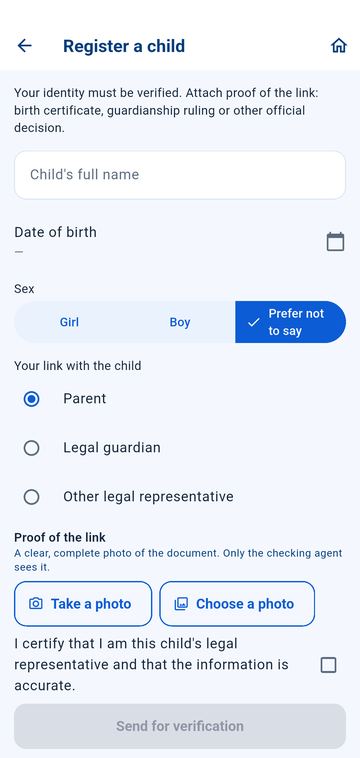
- Home → My children (or Profile → My children), then Register a child.
- Enter the child's full name, date of birth, sex and your relationship: Parent, Legal guardian or Other legal representative.
- Photograph the proof of relationship (birth certificate, guardianship ruling or other official decision), sharp and complete. It is seen only by the agent who checks it.
- Tick the certification, then tap Send for verification. The status changes from "verification in progress" to "link verified".
- Once the link is verified, the child has their own record number: doctors, appointments, teleconsultations, prescriptions and readings are managed for them just as for you.
The child's dashboard (My children → tap the child)
- At the top: date of birth, age group (newborn, infant, early childhood, childhood, adolescence) and record number.
- Alerts: "Normal" when no alert is open; otherwise Watch, Alert or Critical. A critical alert is an indication for urgent care.
- Birth: gestational age, birth weight and measurements. You can complete them; what a professional or maternity unit entered cannot be changed by the parent. For a child born preterm, the corrected age is shown.
- Vital signs and readings, Treatments and Medical history open the child's screens.
- Growth charts (WHO): weight, height, head circumference and BMI for age, compared with World Health Organization references, with percentile and z-score. A low or high percentile is not a diagnosis: it is interpreted by a professional. Sex at birth and date of birth are required. A PDF report can be created.
- Vaccination schedule: vaccines done, upcoming, due now, overdue or deferred, and the PDF vaccination record. You can declare a vaccine noted in the vaccination card (it is labelled "declared"). Dates follow the schedule validated by the Bokono medical team; until it is configured, the screen says so. The health professional decides on each vaccination. A reminder can tell you about an upcoming or overdue vaccine.
Declaring your child's paediatrician (Child's doctors card)
- Tap Declare the paediatrician; the list shows Paediatricians first (or All doctors). Search by name.
- Confirm the request: the doctor receives it and accepts or declines. If they accept, they become the child's main doctor and see the child's record; you are notified.
- The card shows the treating paediatrician, other doctors and pending requests.
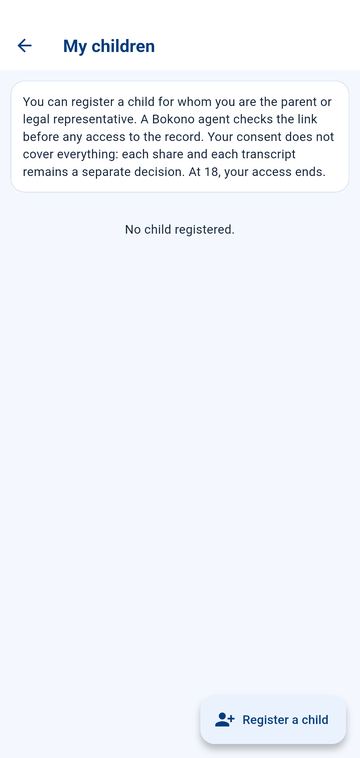
Stronger rules for children. Your consent does not cover everything: each share and each transcript remain separate decisions, and the doctor may record the child's own opinion. At 18, your access ends: the child takes back their record with My parents had opened a record for me, their number (BKN-…) and their date of birth.
Subscription, payment and receipts
Paying the subscription by mobile money
Payment is made directly in the app, by mobile money. It is only requested once the account has been approved.
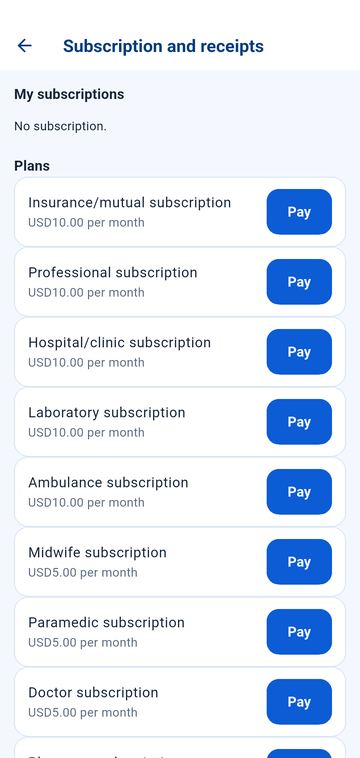
- Tap the Activate my subscription card on the home screen (or Payments, or Profile → Subscription and receipts).
- Under Plans, tap Pay next to the plan that matches your account; the monthly price is shown.
- Enter your mobile money number in international format (e.g. +243 81 234 5678), then tap Pay by mobile money.
- Approve the payment on your phone (message from your operator and your mobile money PIN).
- Return to Bokono and tap Check payment. Once the payment is confirmed, the subscription is active and your receipt appears in My receipts.
If the payment does not go through, no amount is recorded: you can try again. A payment already in progress must be completed or checked before starting another one.
Notifications, privacy, profile and help
Notifications (bell at the top of the home screen)
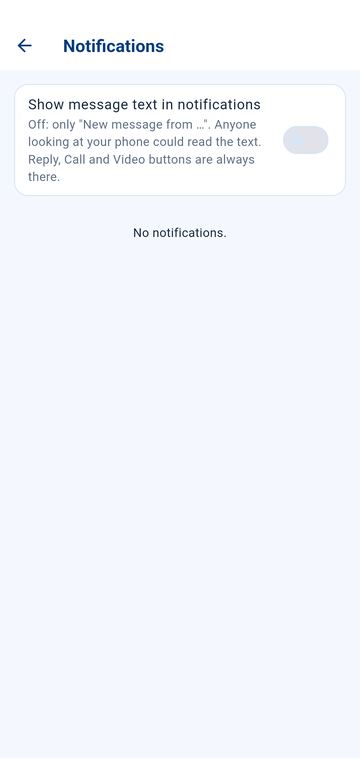
- The list shows your notifications, most recent first; tap one to open the screen it concerns. Mark all as read clears the red counter.
- Show message text in notifications: when off, the notification only says "New message from …"; when on, anyone who sees your phone can read the text.
- If notifications are blocked on the phone, a banner says so: allow them in the Android settings.
- Required permissions: as soon as you sign in, Bokono requires running in the background. The "Required permissions" screen lists what to turn on: notifications, running in the background (tap "Allow"), auto-start on some phones (Tecno, Infinix, itel, Xiaomi, Oppo, Vivo, Huawei…), background data, full-screen calls, microphone and camera, location. Tap Turn everything on, then Turn on on each remaining line: the app opens as soon as everything is on. The Emergency button stays available. If a permission is removed later, the screen comes back. Calls then ring and can be answered directly, even when Bokono is closed or the phone is locked, with no code or fingerprint during the call.
Privacy and permissions (Profile → Privacy and permissions)
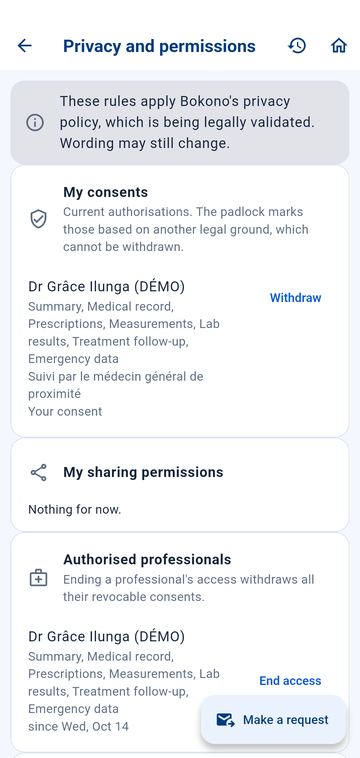
- My consents: what each professional can see (summary, record, prescriptions, readings, results…). Tap Remove to take back access; the padlock marks access based on another legal ground, which cannot be withdrawn.
- Authorised professionals: Withdraw access removes all of a professional's revocable consents at once.
- My sharing permissions and Make a request for any question about your data. The clock icon shows the history.
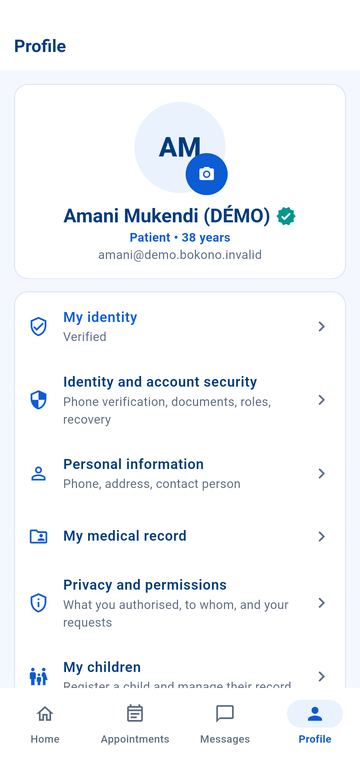
Profile (bottom bar → Profile): photo, My identity, Personal information, My medical record, Privacy and permissions, My children, Medical card, Account security, language and appearance, notifications, Subscription and receipts, help, sign out.
Help and support (Profile → Help and support)
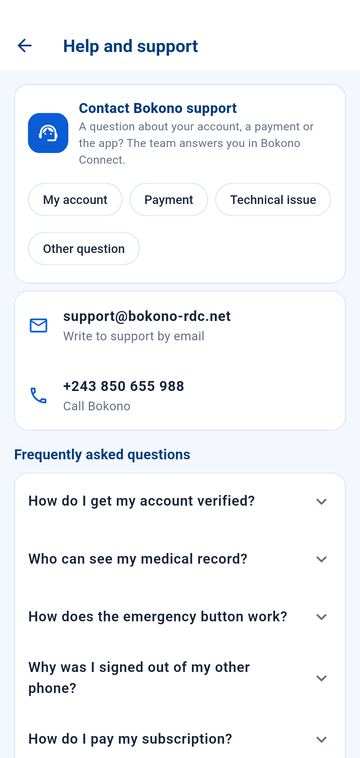
The Frequently asked questions cover common situations. For anything else, tap Contact Bokono support, choose the subject (My account, Payment, Technical issue, Other question) and describe your request: the answer arrives in Bokono Connect. You can also write to support@bokono-rdc.net or call +243 850 655 988.
Shared phone: sign out after use (Profile → Sign out); pending messages and readings are then erased from the device.
Emergency
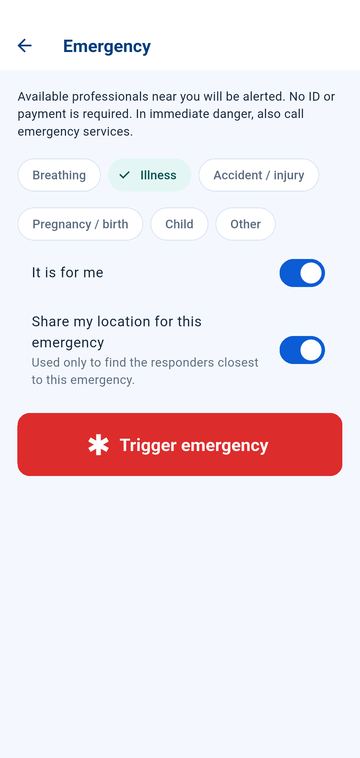
Emergency is never blocked: no ID document, subscription or payment is required.
- Tap the red Emergency button on the home screen.
- Choose the situation: Breathing, Illness, Accident / injury, Pregnancy / birth, Child or Other.
- Leave It is for me on if the emergency concerns you; turn it off if you are raising the alert for someone else.
- Leave Share my location for this emergency on: it is used only to find the closest responders.
- Tap Trigger emergency. Available professionals around you are alerted, in wider and wider areas; you see who takes charge, then "on the way", "on site".
- If nobody answers, the app tells you: call emergency services or go to the nearest health facility. The alert stays open.
Bokono alerts registered, available professionals; it does not guarantee an ambulance or an outside service. In immediate danger, also call emergency services. Bokono number: +243 850 655 988.
Frequently asked questions
| Problem | What to do |
|---|---|
| The download does not start | Open the link in Chrome, not in another app, and wait until it finishes. |
| Android refuses to install | Settings → Allow from this source, go back and tap Install (or Update). |
| I forgot my 6-digit code | After 5 attempts, Bokono signs you out; sign in again with your email and password, then choose a new code. |
| "Account already signed in" | Your account is open on another device: Continue here signs the other one out. |
| Calls or messages do not arrive when the app is closed | Open Bokono: the "Required permissions" screen shows what is missing. Tap Turn on on each line (especially running in the background and auto-start). |
| My services are limited | Your identity is not verified yet: Profile → My identity. Emergency remains available. |
| I cannot find my doctor | Search by name, specialty, facility or Bokono ID; only verified professionals appear. |
| My payment is not confirmed | Approve the payment on your phone, then tap Check payment. |
| A message stays "waiting for network" | It will be sent automatically when the network returns. Never use messages for an emergency. |
| Another question | Profile → Help and support → Contact Bokono support. |