
This manual is for community pharmacies that use Bokono to dispense patients' electronic prescriptions, receive orders, present their products in their Shop and manage their staff and documents.
The pharmacy's account is the organisation's account; it is opened by the manager, together with the responsible pharmacist. Registration is free; the subscription is paid after approval, by mobile money in the app.
Registering the pharmacy
Have ready the opening authorisation, legal identifiers (RCCM, NIF, ID Nat.), the name and registration number of the responsible pharmacist, the exact address and the opening hours.
Installing Bokono on an Android phone
- Open Chrome and go to bokono-rdc.net/en/download.
- Tap Download for Android and wait for the download to finish (about 50 MB).
- Open the downloaded file. If Android asks, tap Settings → Allow from this source, go back, then tap Install.
- Open Bokono. Choose the language at the bottom of the screen (Français or English), then tap Get started.
Registration is free. The subscription is only paid once your account has been approved, directly in the app by mobile money.
On "Who are you?", tap Pharmacy.
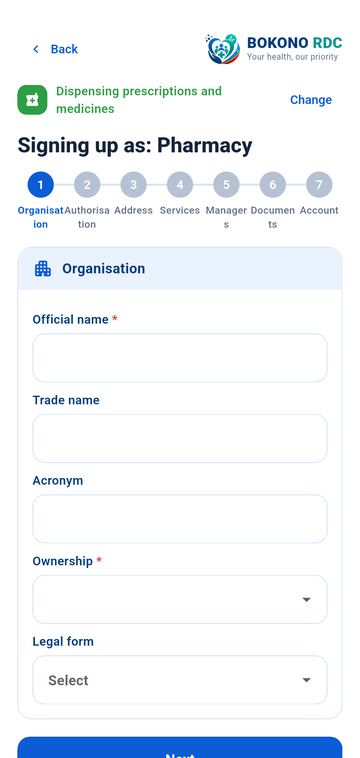
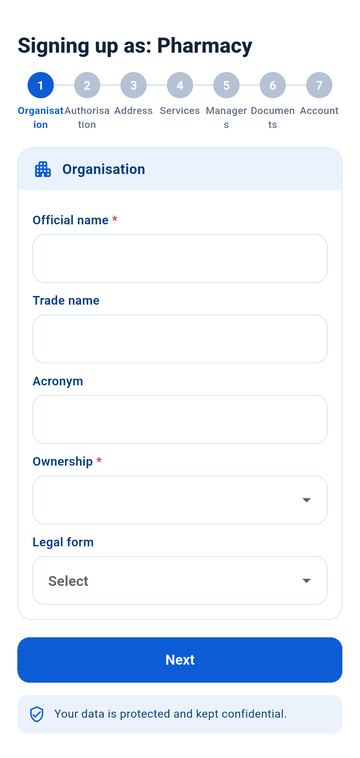
The 7 steps of registering an organisation
The form is filled in by the organisation's manager, or in their presence: the manager signs the declaration at the end. Fields marked with an asterisk () are required; tap Next* at each step.
- Organisation: type of organisation, official name, trade name, acronym, ownership (public, private, faith-based, NGO, other) and legal status.
- Authorisation: authorisation or licence number, issuing authority, legal identifiers (RCCM / NIF / ID Nat.), legal name of the operating entity, and the technical leads specific to your activity. These numbers are checked with the competent authority before any activation.
- Address: province, city or territory, commune and neighbourhood, address (avenue, number), GPS coordinates (optional), phone, email and website.
- Services: the services, hours and information specific to your activity (detailed below). Only tick what is really available: everything is checked.
- Managers: the manager (surname, middle name, first name, role, phone), the medical director if there is one, then 2 to 3 contact persons.
- Documents: photograph each legal document requested, legible and in full. Documents are encrypted and seen only by the verification team.
- Account: email address and password for the organisation's account, acceptance of the terms of use, then the signature: the manager's full name (the same as declared in step 5) and the two certification boxes. Tap Create an account.
Specific to pharmacies
- In the Authorisation step: the responsible pharmacist (required) and their registration number.
- In the Services step: on-duty pharmacy (days), delivery (if authorised), opening days and hours, payment methods and insurers accepted.
Signing in and protecting the app
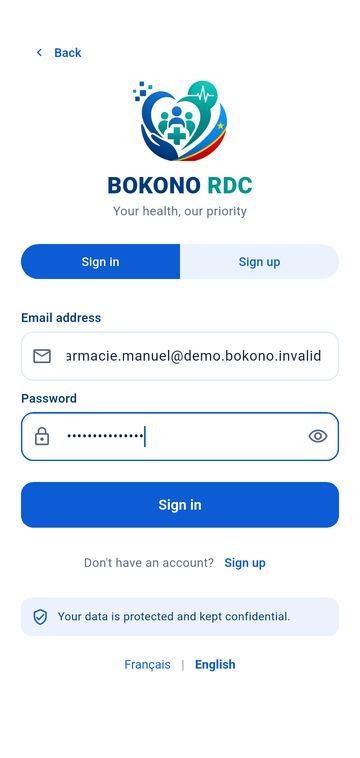
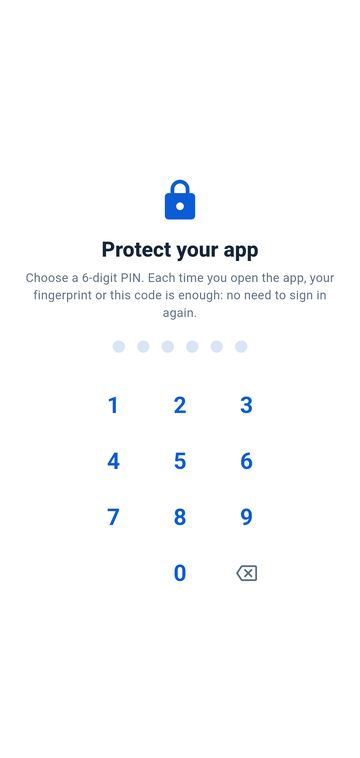
Once your account has been created, you sign in with your email address and password. After that, a 6-digit code (or your fingerprint) is enough to reopen Bokono.
- On the Sign in screen, enter your email address and password, then tap Sign in. The eye icon on the right shows or hides the password.
- "Protect your app": type a 6-digit code, then type it a second time to confirm it. If your phone has a fingerprint reader, turn on Also unlock with my fingerprint.
- Right after that, Bokono asks for access to the microphone (calls and teleconsultations), location (emergencies) and full-screen calls (answering even when the phone is locked). Tap Continue and accept.
- Each time you open the app, or after one minute away from it, place your finger or type your code. After 5 wrong codes, Bokono signs you out for security: sign in again with your password.
One phone at a time. If your account is already open on another device, Bokono shows "Account already signed in". Continue here signs the other device out; Cancel keeps it. Never share your password or your code.
Review of the organisation's file
After it is sent, the file goes for review. Until it is approved, the app only opens the file, help and notifications.
- Open Profile → Facility file: the status is shown at the top (pending, corrections requested, approved).
- If an agent requests a correction, the reason is shown: correct it, add the missing document, then tap Send for verification. Only the declared manager can sign.
- Once the file is approved, the Verified account badge appears on the home screen and the organisation's tools open. The official name, registration number and status can then only change through the verification process.
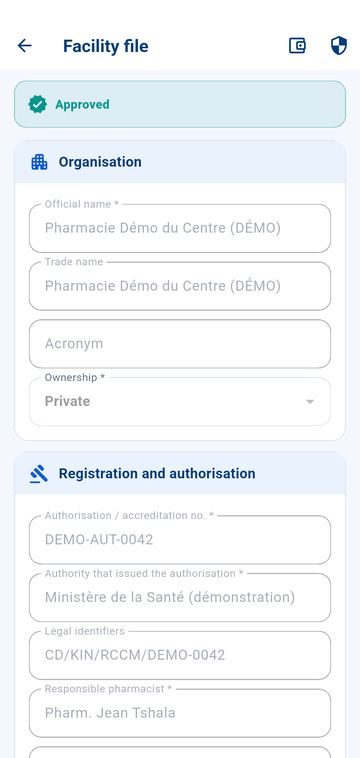
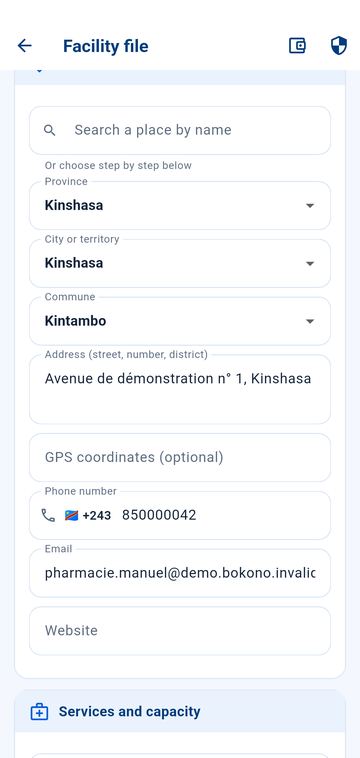
Internal ID. Bokono gives each organisation an ID internal to the platform. It is not an official number: your authorisation, RCCM, NIF or ID Nat. numbers remain those issued by the authorities.
Turning on two-factor authentication (required for professional actions)
Your professional actions — opening a record, prescribing, dispensing, validating, activating a membership… — require a second authentication factor. Until it is turned on, the professional space shows "Second factor required".
- Install an authenticator app on your phone (an app that shows 6-digit codes renewed every 30 seconds).
- In Bokono, open Profile → Account security (two-factor authentication).
- Scan the code shown with the authenticator app (or enter the key shown below the code).
- Enter the 6-digit code shown by the authenticator app, then tap Verify.
Bokono will then ask for this code when needed. The second factor can be turned on at any time, even before your file is approved. It is personal: one second factor per person.
The pharmacy's home screen
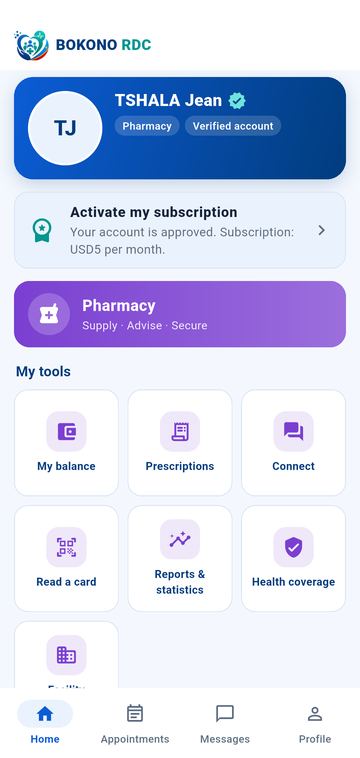
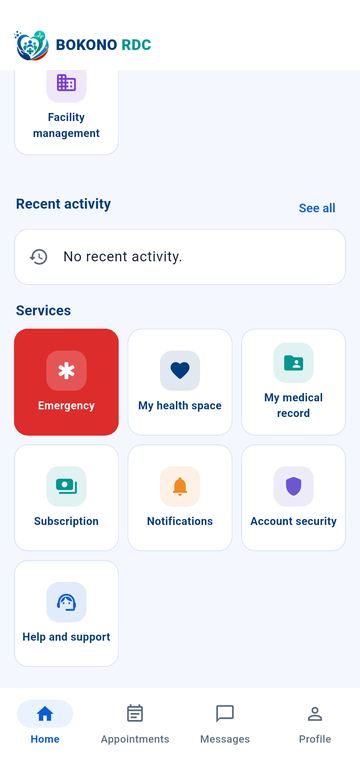
| Area | What it contains |
|---|---|
| Organisation card | Name and "Verified account" badge |
| Activate my subscription | Reminder until the subscription is paid |
| My tools | My balance, Prescriptions, Connect, Read a card, Reports & statistics, Health coverage, Facility management |
Dispensing a prescription
The patient shows the QR code of their prescription in their app. This code contains no medical information and only gives access to that prescription.
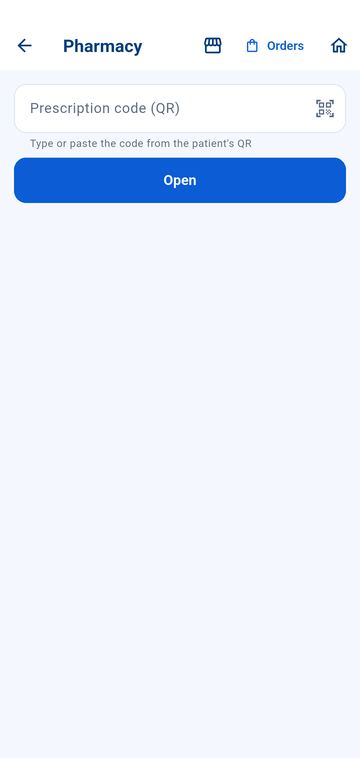
- Home → Prescriptions.
- Tap Scan QR code (icon on the right of the field) and place the code in the frame, or type the code in Prescription code (QR). Tap Open.
- The screen shows the patient (name and year of birth) and each medicine with its dosage and the quantity left to dispense. Medicines already sold are marked Already sold.
- To take a medicine from a lot in your stock, tap the Dispense from stock (lot) icon: choose the lot (number, expiry date, stock). Only valid lots are offered.
- Tick the medicines actually handed to the patient, then tap Confirm sale. The patient's treatment starts and their doctor is notified.
Medicines are paid for at the pharmacy, outside the app. An expired prescription, one cancelled by the doctor or one already dispensed cannot be served: the screen says so. Substitution is only made where allowed, with the prescriber's agreement when required.
Orders and Shop
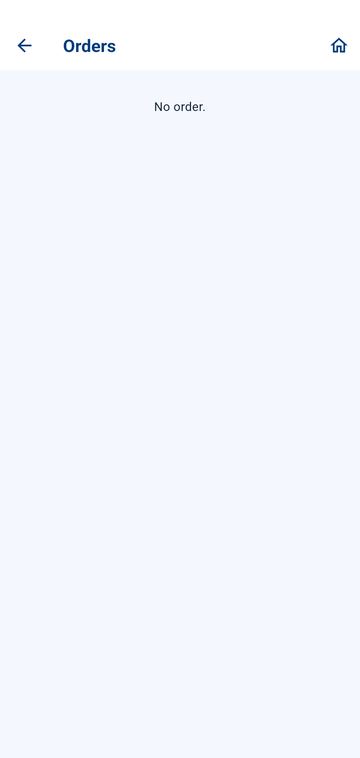
Orders (Prescriptions screen → Orders, top right)
- Patients' orders arrive with the status New.
- Accept the order (with an optional message, e.g. delivery time) or Decline the order (reason required).
- Move the order forward: Ready, Out for delivery (if you deliver), then Handed over to the patient. The total and any items "already bought elsewhere" are shown.
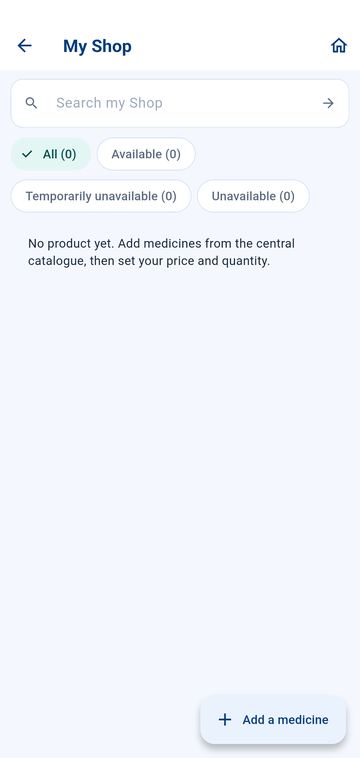
My Shop (Prescriptions screen → Shop icon, the storefront)
- Add a medicine: choose it from the central catalogue, then enter your unit selling price, the quantity available, its location (shelf, cabinet…) and availability.
- Each product can be Available, Temporarily unavailable or Unavailable. Actual stock is calculated from your lots.
- Edit price, quantity, availability or Remove from my Shop at any time.
Management, staff and documents
Facility management (home → Facility management)
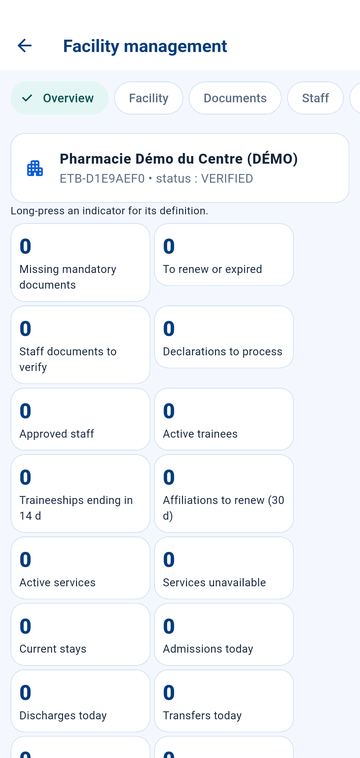
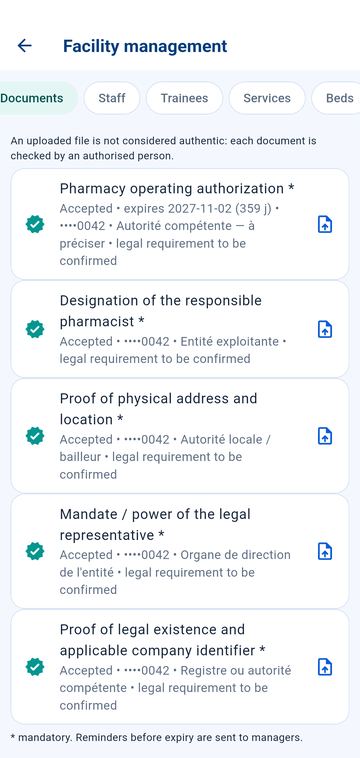
The screen opens on the Overview: indicators (missing required documents, documents to renew, staff declarations to process, approved staff…). A long press on an indicator shows its definition. The tabs at the top give access to the details:
- Facility: trade name, address, province, city, official phone and email, opening hours and operational information; tap Save. The official name, registration number and status only change through verification.
- Documents: the documents required for your type of organisation, their status (to provide, under review, accepted, refused, corrections requested, expired, to renew) and their expiry date. An uploaded file is not considered authentic: each document is checked by an authorised person. Reminders are sent to managers before expiry.
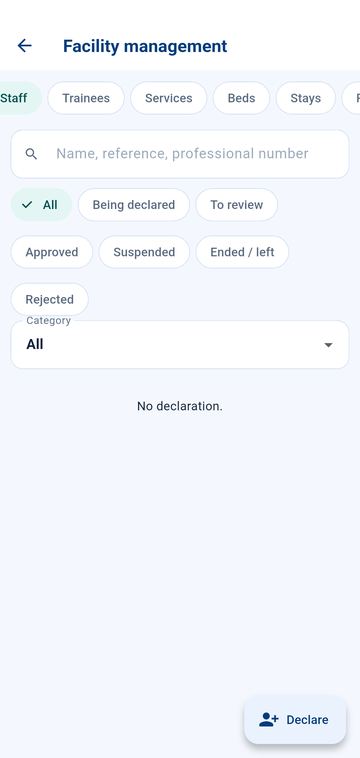
- Staff: your staff declarations (see below).
- Reports: the institutional documents generated and their validation.
- Settings: the documents requested for staff declarations (internal rules in addition to the platform's rules).
Declaring your staff (Facility management → Staff)
- Tap New declaration.
- Identity: surname, middle name, first name, date of birth (it helps avoid duplicates), phone, email.
- Role and engagement: professional category (general or specialist doctor, nurse, midwife, lab technician or biologist, pharmacist, technician, administrative and technical staff…), specialty, professional number, type of engagement (employee, contractor, authorised volunteer, other), department, role or position, start and end dates.
- Tap Save. If an ongoing declaration looks like this one (same account, same professional number, or same name and date of birth), Bokono flags a possible duplicate: check before continuing.
- From the declaration page, upload the supporting documents requested (10 MB maximum per file), then tap Submit.
- A manager takes it for review, checks each document (Accept or Decline with a reason), then Approve, Request information or Decline.
- If the person has a Bokono professional account, link it (Link) or give them the link code: they enter it in Profile → My facility declarations.
Approval is internal to the facility: it is not an official licence. Professional access to the department only opens if the person has confirmed the link, their qualification is verified by Bokono and they are not in training.
The page then lets you record movements (change of department or role, renewal or extension), Suspend or Reactivate, and Record departure. Professional access is adjusted automatically. The history is kept.
Health coverage and reports
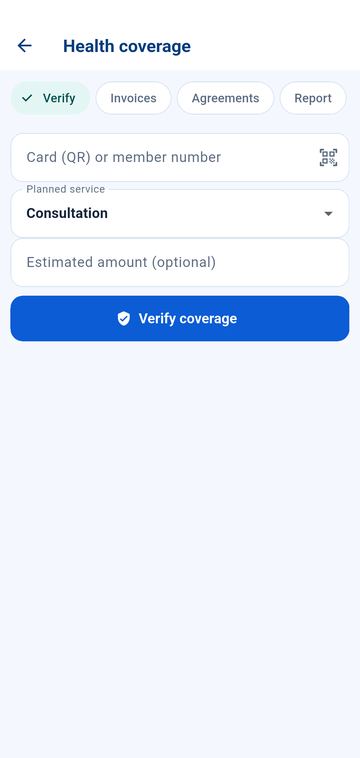
Patients' health coverage (home → Health coverage)
For insured patients or mutual members, the organisation checks coverage and sends its invoices to the insurer directly in Bokono.
- Verify: scan the beneficiary's card (QR) or enter their number, state the planned care and, if you wish, an estimated amount, then tap Verify coverage. The answer says, for example: potentially eligible, excluded or in a waiting period, prior authorisation needed, coverage expired, or facility not covered by an agreement in force.
- Invoices: Prepare the invoice, add each service (label, agreement tariff code, quantity, unit price, date of care), then Submit. Only attach the medical information that is necessary. Bokono flags a similar invoice already submitted. Then follow the status (submitted, under review, accepted, partially accepted, contested, refused, awaiting payment, paid, closed), the insurer's share, the patient's share and the balance due.
- Agreements: submitting an invoice requires an agreement in force with the insurer. Propose an agreement (services, tariffs, pre-authorisation, invoice and payment deadlines, disputes); by proposing, you sign for your organisation, and the agreement becomes active when the insurer signs in turn.
Active coverage does not guarantee that all care is covered. Emergencies must never wait for this check.
Reports & statistics (home → Reports & statistics)
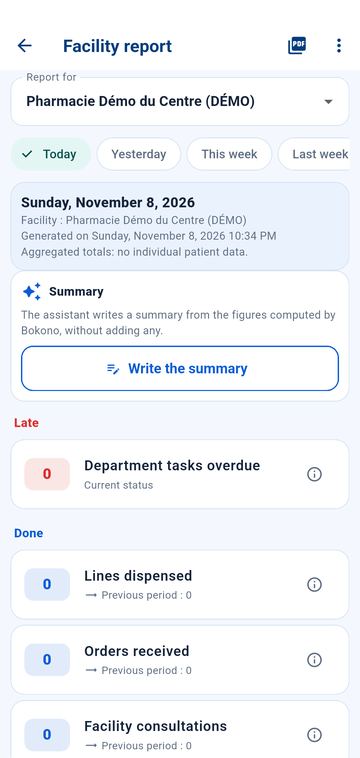
- Choose the period (today, yesterday, this week or another period offered). The figures only count what is recorded in Bokono; the i explains each figure.
- Write the summary: the assistant writes a summary from the calculated figures, without adding any; you review it.
- The PDF icon exports the report.
Institutional documents (facility sheet, list of departments, declared staff, document status, capacity and beds, periodic report) are generated in Facility management → Reports → Generate. Each document must be validated by a manager — someone other than its author where there is one — before being sent anywhere. The official format remains to be confirmed with the receiving authority.
Reading a medical card (home → Read a card): scan the QR code the patient shows you (or enter the code). It is valid for 15 minutes and each reading is recorded in the patient's history, which the patient can see.
Messages and calls: Bokono Connect
Never use messages for an emergency: use the red Emergency button or call emergency services.
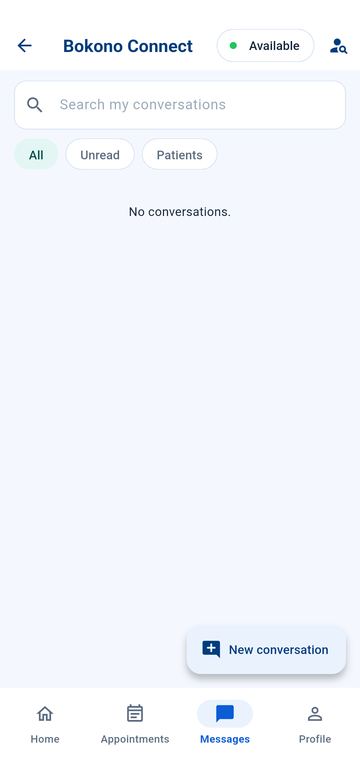
- Tap Messages in the bottom bar (or the Connect tile on the home screen). Conversations are listed with the most recent at the top, messages grouped by day; the All and Unread filters and the search bar help you find an exchange.
- New conversation: search for a registered person or organisation by name, profession or Bokono ID.
- The name and photo of the person you are talking to appear at the top of the conversation. You can send text, photo, document or voice message. Without a network, the message waits on the phone and is sent automatically when the network returns; it is never shown as "sent" before then.
- To call, tap the phone icon (audio) or the camera icon (video). The screen shows "ringing", "busy" or "unreachable". An incoming call rings even when the phone is locked: tap Answer in the notification. The call opens directly, with no intermediate screen and no Bokono code; the code is asked again after the call. No other window opens during a call. Calls are never recorded.
- The Available switch at the top of the Messages screen tells others whether you can be called right now (green or red dot).
Subscription, notifications and help
Paying the subscription by mobile money
Payment is made directly in the app, by mobile money. It is only requested once the account has been approved.
- Tap the Activate my subscription card on the home screen (or Payments, or Profile → Subscription and receipts).
- Under Plans, tap Pay next to the plan that matches your account; the monthly price is shown.
- Enter your mobile money number in international format (e.g. +243 81 234 5678), then tap Pay by mobile money.
- Approve the payment on your phone (message from your operator and your mobile money PIN).
- Return to Bokono and tap Check payment. Once the payment is confirmed, the subscription is active and your receipt appears in My receipts.
If the payment does not go through, no amount is recorded: you can try again. A payment already in progress must be completed or checked before starting another one.
My balance and Makuta dossier
Patients' payments for your services go through Makuta, Bokono's payment provider.
- Tap My balance: it is the first tile of your professional tools (or the Balance button at the top of the professional space).
- Available balance: the amounts received for you and not yet paid out. Below: the Total received and the list of Transactions (payment received, payout), with their status: received, pending, payout prepared, paid out, refunded…
- The icon at the top right opens My payments and Makuta dossier. This dossier is created automatically when you sign up, from the documents already provided to Bokono. The screen shows money received, payouts, the dossier status (in preparation, under review, sent to Makuta, payment extension active, to be completed) and the status of each document (being verified by Bokono, verified by Bokono then by Makuta, correction requested, rejected — to be replaced).
- The To provide list shows missing documents. A rejected document or one needing correction is replaced in your professional application file: it is picked up automatically and goes back for review.
The dossier is only sent to Makuta after Bokono has verified your documents and an administrator has validated it. Bokono never asks for your mobile money PIN.
Notifications (bell at the top of the home screen)
- The list shows your notifications, most recent first; tap one to open the screen it concerns. Mark all as read clears the red counter.
- Show message text in notifications: when off, the notification only says "New message from …"; when on, anyone who sees your phone can read the text.
- If notifications are blocked on the phone, a banner says so: allow them in the Android settings.
- Required permissions: as soon as you sign in, Bokono requires running in the background. The "Required permissions" screen lists what to turn on: notifications, running in the background (tap "Allow"), auto-start on some phones (Tecno, Infinix, itel, Xiaomi, Oppo, Vivo, Huawei…), background data, full-screen calls, microphone and camera, location. Tap Turn everything on, then Turn on on each remaining line: the app opens as soon as everything is on. The Emergency button stays available. If a permission is removed later, the screen comes back. Calls then ring and can be answered directly, even when Bokono is closed or the phone is locked, with no code or fingerprint during the call.
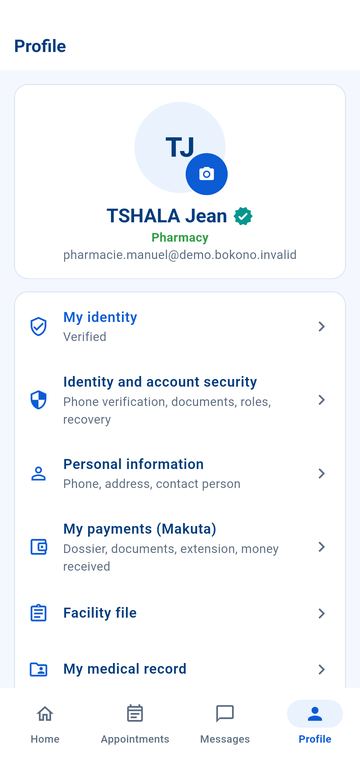
Help and support (Profile → Help and support)
The Frequently asked questions cover common situations. For anything else, tap Contact Bokono support, choose the subject (My account, Payment, Technical issue, Other question) and describe your request: the answer arrives in Bokono Connect. You can also write to support@bokono-rdc.net or call +243 850 655 988.
Frequently asked questions
| Problem | What to do |
|---|---|
| "No valid lot in stock for this medicine" | Record a non-expired lot in your stock, or simply tick the medicine handed over and confirm the sale. |
| The prescription code does not open | Ask the patient to display the prescription again; check that it has not expired or already been dispensed. |
| The camera does not open | Allow the camera in the phone settings, or type the code by hand. |
| The patient bought part elsewhere | Only tick what you hand over: the rest remains to be bought. |