
This manual is for doctors — general practitioners, specialists and private doctors — who use Bokono to follow their patients. It describes, with the app's real screens, registration, file review and daily use: patients, schedule, prescriptions, teleconsultation, messages, case conferences and emergencies.
Your account only becomes operational once your identity and professional documents (diploma, council registration) have been verified. Registration is free; the subscription is then paid by mobile money, in the app.
Installing the app and registering
Have your ID document, your medical council registration number and copies of your diplomas ready.
Installing Bokono on an Android phone
- Open Chrome and go to bokono-rdc.net/en/download.
- Tap Download for Android and wait for the download to finish (about 50 MB).
- Open the downloaded file. If Android asks, tap Settings → Allow from this source, go back, then tap Install.
- Open Bokono. Choose the language at the bottom of the screen (Français or English), then tap Get started.
Registration is free. The subscription is only paid once your account has been approved, directly in the app by mobile money.
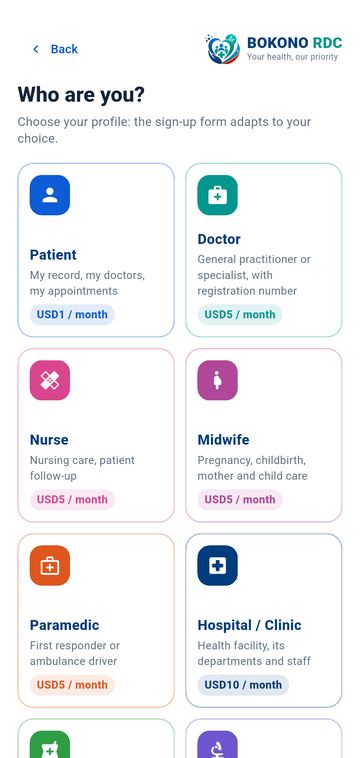
On "Who are you?", tap Doctor.
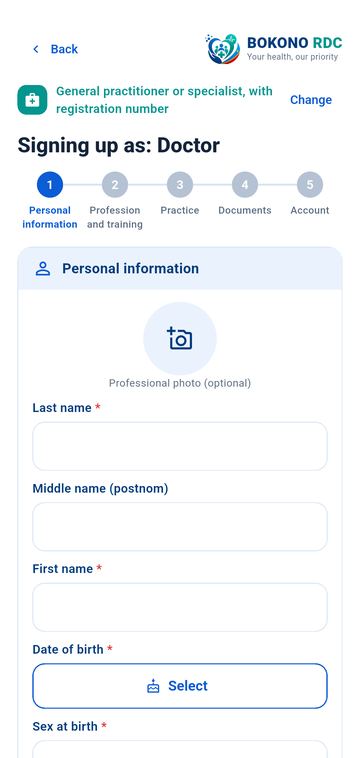
The 5 steps of professional registration
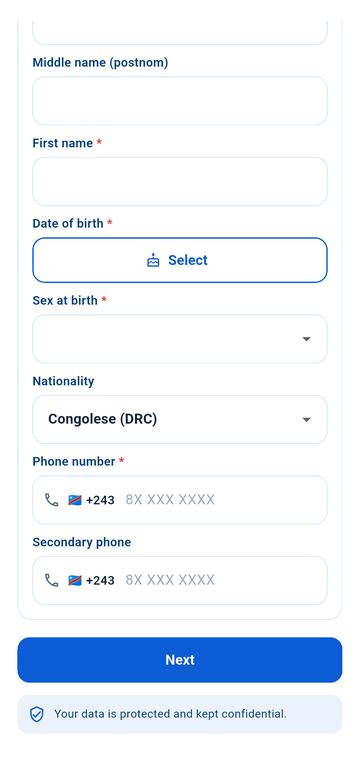
- Personal information: professional photo (optional), surname, middle name (post-nom), first name, date of birth, sex, nationality, phone.
- Profession and training: the items specific to your profession (detailed below) and your education: Add my education → country (DRC by default) → university or institute (search by name or acronym) → faculty → programme → diploma → year → diploma number. Your institution is not in the list? Choose My institution or training is not listed and type its name: it will be checked, and you can carry on.
- Practice: Facility you belong to (required): Choose my facility, type at least 2 letters of its name. Not in the list? Other — my facility is not listed: name, city, type; this declaration will be checked. Also give the start of your professional practice (exact date or year only, not the diploma date), practice area, role, days and hours, languages spoken.
- Documents: ID document (front and back) and the professional documents requested (diploma, council registration…), photographed in full and legible. Documents are encrypted and seen only by the verification team.
- Account: email address, password (at least 10 characters), acceptance of the terms of use. Tap Create an account.
Specific to doctors ("Profession and training" step)
- Main specialty (required), then the sub-specialties and fields of expertise to tick (optional) and an additional skill. Add another specialty if you have several.
- Professional registration number and the council concerned (e.g. National Council of the Order of Physicians).
- Consultation modes offered: in person, teleconsultation.
Signing in and protecting the app
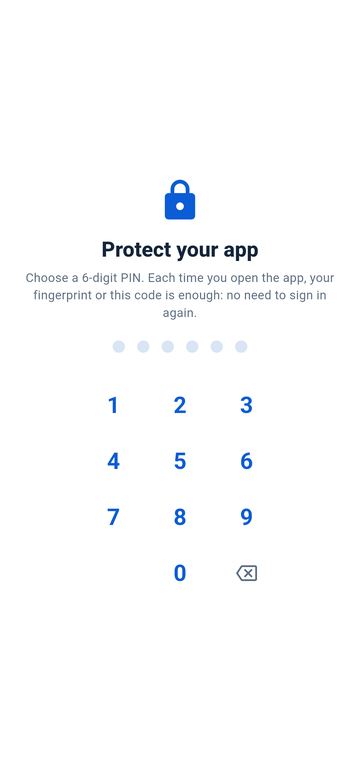
Once your account has been created, you sign in with your email address and password. After that, a 6-digit code (or your fingerprint) is enough to reopen Bokono.
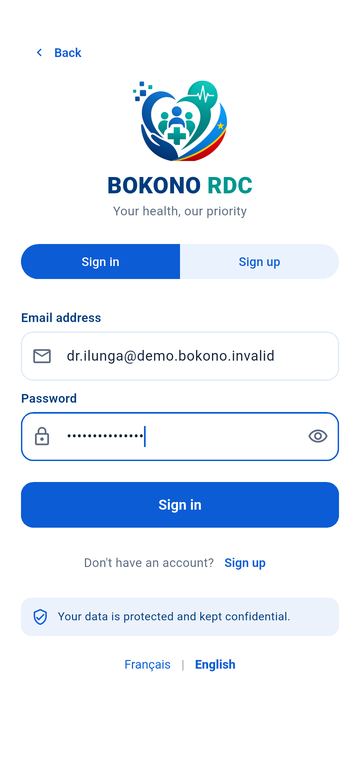
- On the Sign in screen, enter your email address and password, then tap Sign in. The eye icon on the right shows or hides the password.
- "Protect your app": type a 6-digit code, then type it a second time to confirm it. If your phone has a fingerprint reader, turn on Also unlock with my fingerprint.
- Right after that, Bokono asks for access to the microphone (calls and teleconsultations), location (emergencies) and full-screen calls (answering even when the phone is locked). Tap Continue and accept.
- Each time you open the app, or after one minute away from it, place your finger or type your code. After 5 wrong codes, Bokono signs you out for security: sign in again with your password.
One phone at a time. If your account is already open on another device, Bokono shows "Account already signed in". Continue here signs the other device out; Cancel keeps it. Never share your password or your code.
File review and professional profile
After the account is created, your file is automatically sent for review. Until it is approved, the app only opens your file, help and notifications.
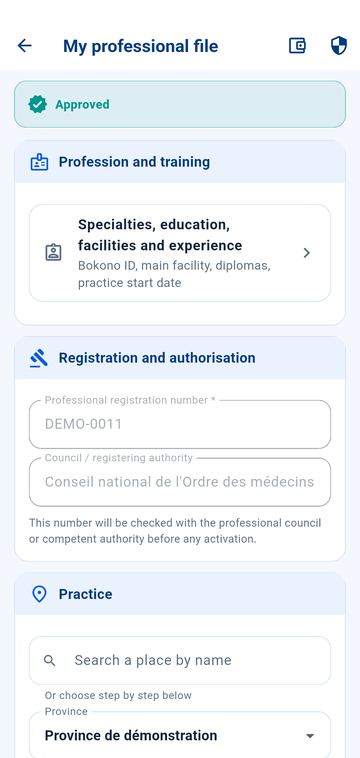
Following the review (Profile → My professional file)
- The file status is shown at the top: pending, corrections requested or approved.
- If an agent requests a correction, the reason is shown: correct it, add the missing document, then tap Send for verification.
- Your registration number is checked with the professional council or competent authority before any activation. You are notified of every decision.
My professional profile (My professional file → Specialties, education, facilities and experience)
This is what patients see when they look for you. It never shows your home address.
- Bokono ID (e.g. BKP-000001): a number internal to the platform, assigned automatically. It is not a number issued by a professional council; your official registration number is shown below it, with its status (verified or pending).
- Experience: tap Exact date or choose the year you started practising. The app calculates your years of experience; with the year only, it says "estimate". A future date is refused.
- Facilities: the facility you belong to (required), marked Main, and any secondary facilities. A facility declared as "Other" remains to be verified until it is linked.
- Education: each course stays marked "Declared by you (not verified)" until the copy of the diploma is checked, then "Diploma verified by Bokono".
- Tap Save after each change.
Joining a facility with a code: if a hospital or clinic has declared you as staff, it gives you a link code. Enter it in Profile → My facility declarations to confirm the link.
Turning on two-factor authentication (required for professional actions)
Your professional actions — opening a record, prescribing, dispensing, validating, activating a membership… — require a second authentication factor. Until it is turned on, the professional space shows "Second factor required".
- Install an authenticator app on your phone (an app that shows 6-digit codes renewed every 30 seconds).
- In Bokono, open Profile → Account security (two-factor authentication).
- Scan the code shown with the authenticator app (or enter the key shown below the code).
- Enter the 6-digit code shown by the authenticator app, then tap Verify.
Bokono will then ask for this code when needed. The second factor can be turned on at any time, even before your file is approved. It is personal: one second factor per person.
A main specialty that has already been verified cannot be changed in the app: write to support, as a new verification is needed.
The doctor's home screen
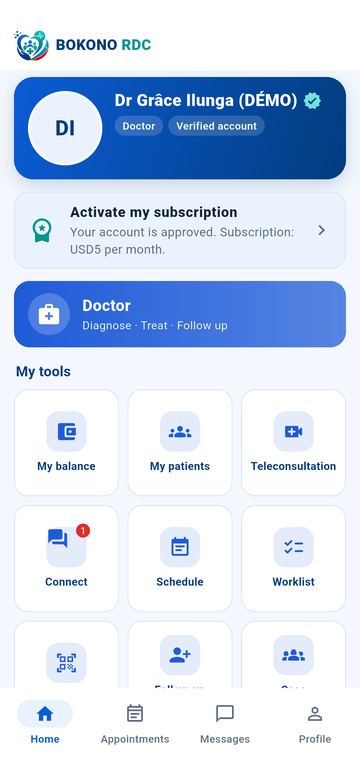
The home screen adapts to your profession: your patients, today's consultations and your tools on a single screen.
| Area | What it contains |
|---|---|
| Card with your name | Your name, profession and the "Verified account" badge |
| Activate my subscription | Reminder until the subscription is paid |
| Profession banner | "Doctor"; tap it to open the professional space |
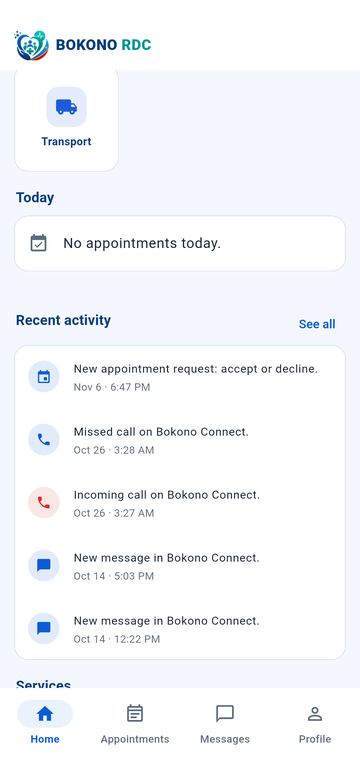
| My tools | My balance, My patients, Teleconsultation, Connect, Schedule, Worklist, Read a card, Follow-up requests, Case conferences, My reports, My medical activity, Tasks & alerts, Transport |
| Today | Today's appointments; video or audio opens the teleconsultation |
| Recent activity | Missed calls, messages, results; See all for the full list |
Bottom bar: Home, Appointments, Messages, Profile.
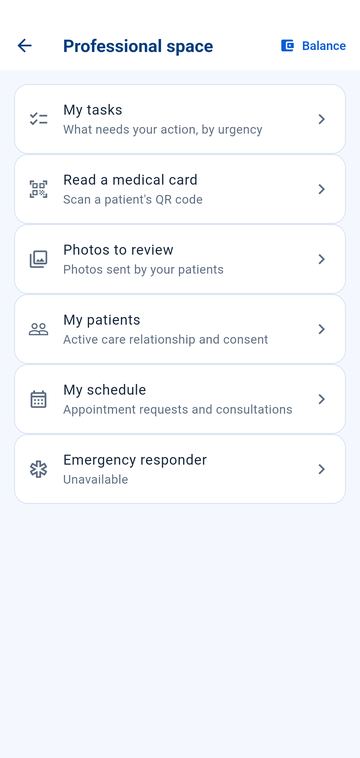
Professional space (profession banner): My tasks, Read a medical card, Photos to review, My patients, My schedule, Emergency responder.
Patients, records and prescriptions
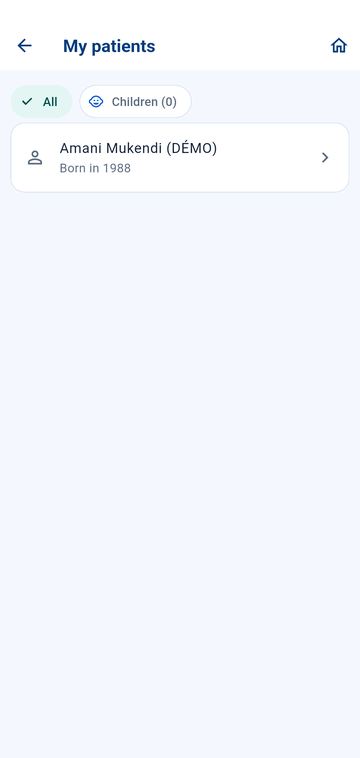
You only see a patient's record if there is a care relationship and consent in force, or during a confirmed appointment. Every opening of the record is logged and visible to the patient.
My patients (home → My patients): the list of patients you follow. Tap a patient to open their page: summary, record, readings (with their source: device, manual entry), results and treatments, according to what they have authorised. From the page:
- Write a prescription;
- Consult now;
- Care & handoffs, Pregnancy (where relevant), Transport, Task;
- Monitoring plan, Monitoring report, Growth (WHO), Vaccination;
- Refer to a specialist.
My access rights for this patient shows exactly what you can see, for what purpose, and the restrictions (minor patient, transcripts…).
Readings, alerts and monitoring (patient's page)
- Readings: each value shows its source: medical device, consumer device, entered by a professional, entered by the patient, phone sensor (estimate) or imported data. A Smart Health estimate (camera pulse, movement tests) is never presented as a validated medical measurement; it carries its method and signal quality.
- Alerts: the top card shows "Normal" or the open alerts, by level Watch, Alert or Critical, with the source of the threshold. Thresholds are set by the Bokono medical team, following validated protocols, and adapted to age (newborn, infant, child, adolescent, adult); an alert is an indication, not a diagnosis.
- Birth (children): gestational age, measurements, Apgar and corrected age for a child born preterm. A professional can complete or correct this record; the parent cannot change what a professional entered.
- Missed readings: reminders sent to the patient or their parents over 14 days, and their delivery.
- Growth (WHO): weight, height, head circumference and BMI-for-age charts, with z-score and percentile calculated using the WHO method; PDF report. Interpretation remains yours.
- Vaccination: individual schedule (done, due, overdue, catch-up), recording a vaccination, a deferral or a contraindication, PDF vaccination record. Dates follow the schedule validated by the Bokono medical team; you decide on each vaccination.
Monitoring plan (patient's page → Monitoring plan, for professionals who prescribe)
- Choose a template (hypertension, diabetes, weight follow-up, pregnancy, paediatric follow-up, after hospital stay…) or build the plan: parameters and expected frequency (per day or per week), instructions for the patient.
- If needed, set check times (e.g. 08:00, 20:00).
- Reminders for missed readings: tolerance, number of reminders and interval, recipients (the patient, parents or guardians) and escalation after a number of missed slots, to you only or to the whole care team. Never more reminders than the number set.
- Tap Save the plan. The patient sees the plan and its progress in Readings.
- Monitoring report: a report of the last 30 days is saved in the record.
Writing a prescription
- From the patient's page, tap Write a prescription.
- For each line: medicine (INN), strength, form, dosage, doses per day and dose times, duration, quantity. Add a medicine for another line. Set the validity.
- Tap Save and sign. The content is frozen before signing; any later change creates a new version.
- The patient finds the prescription with its QR code; the pharmacy scans it and confirms the sale. You are notified when the treatment starts.
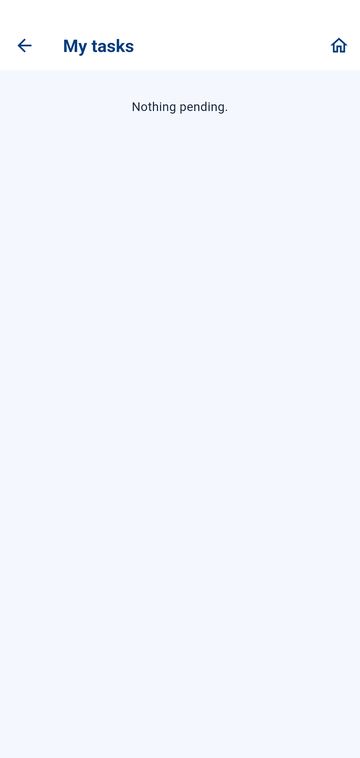
Worklist (home → Worklist): everything waiting for your action, from most to least urgent: nearby emergencies, critical results to acknowledge, reading alerts, missed doses, reported side effects, substitution and transfer requests. "Nothing pending" means everything is up to date.
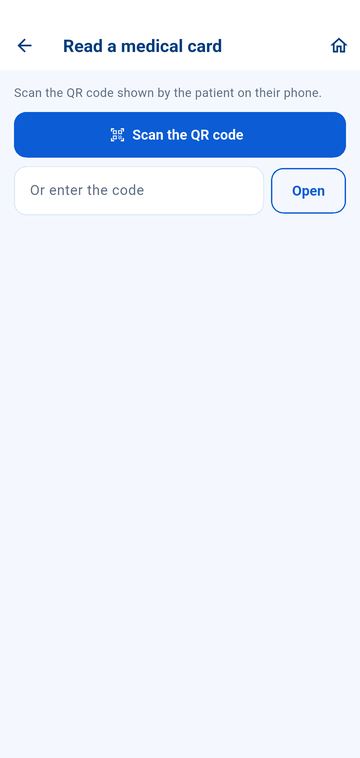
Reading a medical card (home → Read a card): scan the QR code the patient shows you (or enter the code). It is valid for 15 minutes and each reading is recorded in the patient's history, which the patient can see.
Photos to review (professional space): medical photos sent by your patients (skin, wound, eye…). Open a photo and give your opinion; the patient receives it.
Schedule, appointments and teleconsultation
My schedule (home → Schedule)
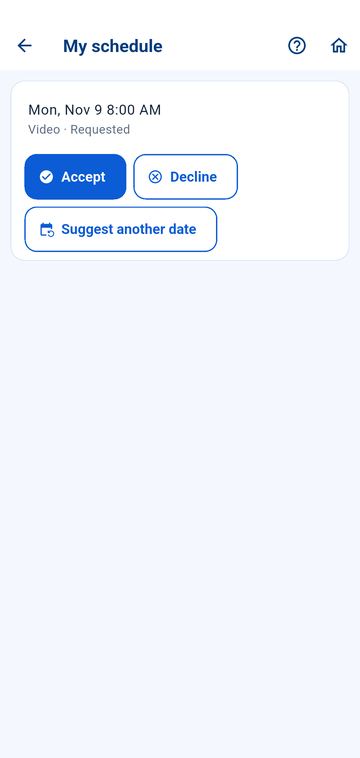
- An appointment request arrives with the status "Requested" and a notification. Accept, Decline (with the reason) or Suggest another date: choose the day, time, mode (video, audio or in person) and the reason; the patient is notified and accepts or declines.
- The patient confirms; the appointment becomes "Confirmed" and access to the record opens for the consultation (the patient can revoke it).
- After the consultation, mark it as completed or record a no-show. Today's appointments also appear on the home screen, under Today.
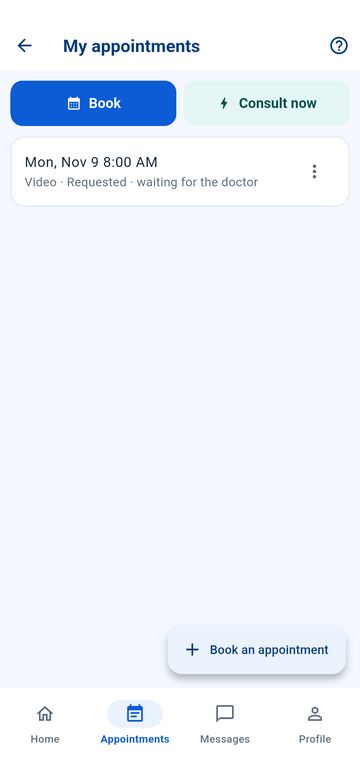
Immediate consultation: the request arrives with an alert and the lightning icon. Accept if you are available: the consultation starts at once. Without an answer within 15 minutes, it is cancelled and the patient can choose another doctor. Your consultation days and hours (your availability) form the calendar patients see.
Teleconsultation
- Open the confirmed audio or video appointment (from Today, the schedule or the Teleconsultation tile).
- Accept transcription of the consultation? Tap Yes or No. Transcription writes the conversation as text to help write the report; no audio or image is kept. It only takes place if both parties answer Yes ("Transcription accepted by both"); otherwise the consultation goes ahead without transcription.
- Tap Start the consultation: the call starts (the patient taps Join the consultation). During the call, transcription can be paused and resumed.
- Tap End the consultation and confirm: the call and transcription stop, then the consultation report opens. The transcript is the starting point; the assistant can propose a draft from de-identified data, which you review and correct. Once signed, the report goes into the patient's record (Consultations and reports section).
- The raw transcript remains available read-only (Read the full text), for the patient and for you.
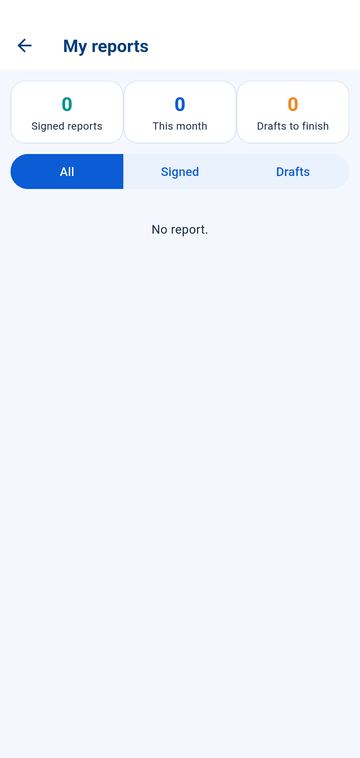
My reports (home → My reports): your signed reports and drafts to finish (All, Signed, Drafts filters).
Messages and calls: Bokono Connect
Never use messages for an emergency: use the red Emergency button or call emergency services.
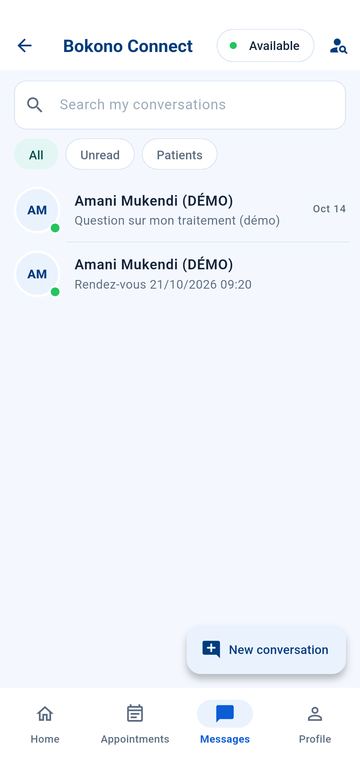
- Tap Messages in the bottom bar (or the Connect tile on the home screen). Conversations are listed with the most recent at the top, messages grouped by day; the All and Unread filters and the search bar help you find an exchange.
- New conversation: search for a registered person or organisation by name, profession or Bokono ID.
- The name and photo of the person you are talking to appear at the top of the conversation. You can send text, photo, document or voice message. Without a network, the message waits on the phone and is sent automatically when the network returns; it is never shown as "sent" before then.
- To call, tap the phone icon (audio) or the camera icon (video). The screen shows "ringing", "busy" or "unreachable". An incoming call rings even when the phone is locked: tap Answer in the notification. The call opens directly, with no intermediate screen and no Bokono code; the code is asked again after the call. No other window opens during a call. Calls are never recorded.
- The Available switch at the top of the Messages screen tells others whether you can be called right now (green or red dot).
Follow-up requests and case conferences
Follow-up requests (home → Follow-up requests): patients who ask for you as their GP, private doctor, specialist or consultant. Read the message or mission, then accept or decline with a reason; the patient sees it. Follow-up as a private doctor is paid by the patient by mobile money. A parent can also declare you as their child's treating paediatrician: if you accept, you become the child's main doctor and see the child's record. In My patients, the Children filter groups the children you follow.
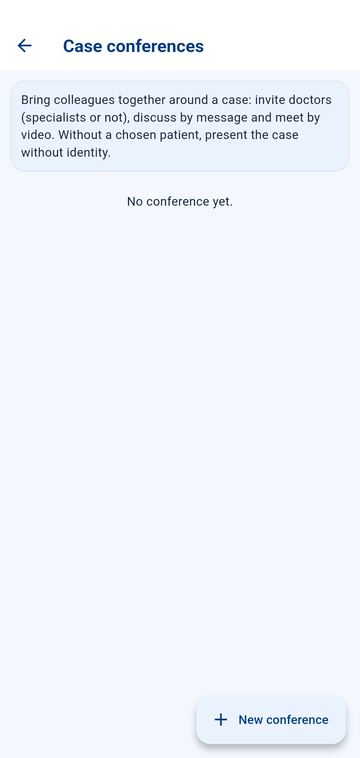
Case conferences (home → Case conferences): bring colleagues together around a case. Tap New conference, invite professionals, exchange messages and meet by video. With no patient selected, present the case without identity; with a patient, their consent is requested.
Activity, tasks and transport
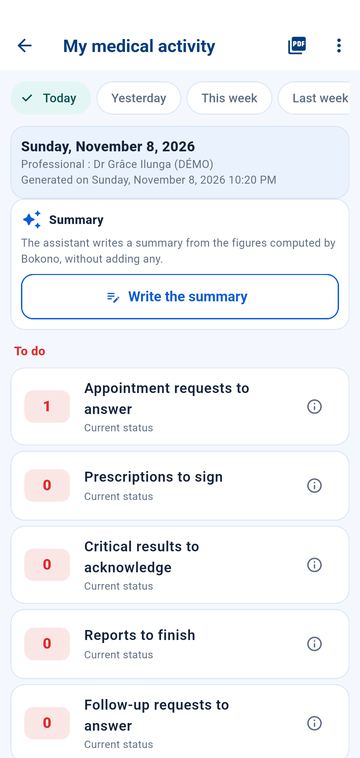
My medical activity (home → My medical activity)
- Choose the period: Today, Yesterday, This week or another period offered.
- To do shows the current state of what is waiting for action; the i explains each figure.
- Write the summary: the assistant writes a summary from the figures calculated by Bokono, without adding any; you review it.
- The PDF icon exports the report. The figures only count what is recorded in Bokono.
Tasks & alerts (home → Tasks & alerts)
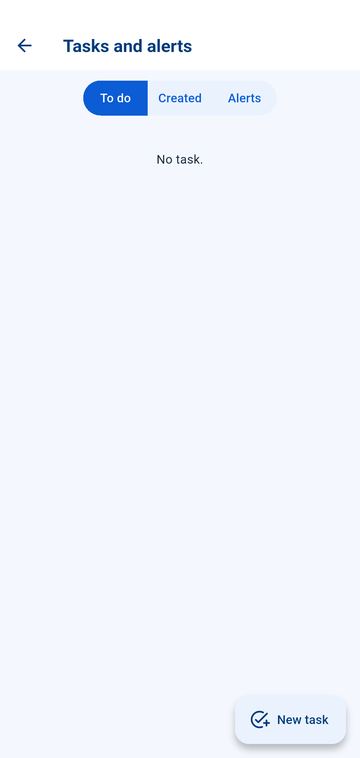
- To do, Created and Alerts tabs.
- New task: title, details, category (care, medication, vital signs, monitoring, follow-up, laboratory, transport, administrative…), priority (urgent, priority, routine) and its basis, due date, then Assign to yourself, a colleague or a department. Tap Create task.
- A task moves from Planned to Ongoing (Start), then Done or Not done (reason required). An overdue task is flagged "OVERDUE" and raises an alert.
- An alert (reading, treatment, critical result, clinical rule) explains Why it was raised; tap Acknowledge, then Open record if needed.
Medical transport (home → Transport)
To have a patient transported by an ambulance service registered on Bokono:
- Tap Transport request.
- Choose the ambulance service, enter the pick-up location, the destination (facility), the reason and the priority according to the local protocol (immediate, urgent or scheduled). Add the information available about the patient.
- Tap Send request. Then follow the status: Request received, Awaiting regulation, Assigned, Crew en route, On scene, Patient on board, In transport, Handed over, Completed.
In a life-threatening emergency, use the emergency procedure and call emergency services: a transport request does not replace an emergency alert.
Emergencies
Emergency responder (professional space → Emergency responder)
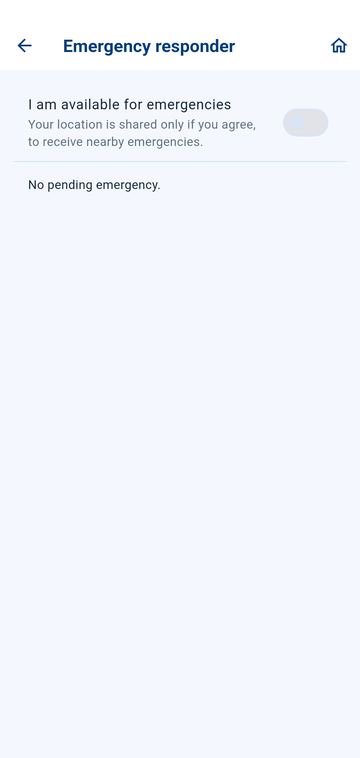
- Turn on I am available for emergencies. Your location is shared only if you agree, to receive nearby emergencies.
- An alert "… emergency … km away" arrives: tap I take it or I cannot.
- Only one responder is assigned: the first one who accepts ("You are the first responder"). The others are told the emergency has already been taken.
- The responder sees the patient's summary and emergency data for the duration of the intervention (24 hours at most), not the full record. Then tap On the way, On site, Hand over to a facility, then Close.
Notifications, subscription and help
Notifications (bell at the top of the home screen)
- The list shows your notifications, most recent first; tap one to open the screen it concerns. Mark all as read clears the red counter.
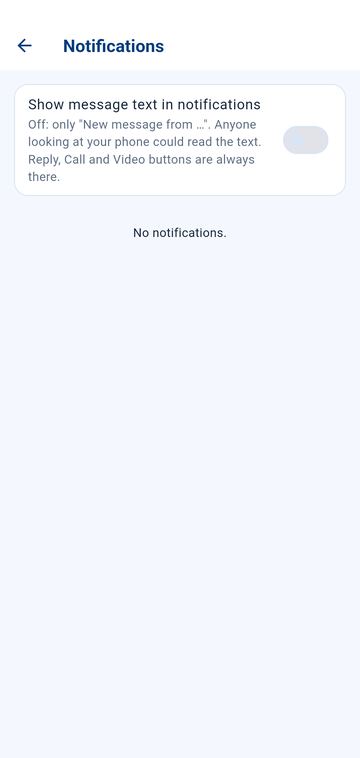
- Show message text in notifications: when off, the notification only says "New message from …"; when on, anyone who sees your phone can read the text.
- If notifications are blocked on the phone, a banner says so: allow them in the Android settings.
- Required permissions: as soon as you sign in, Bokono requires running in the background. The "Required permissions" screen lists what to turn on: notifications, running in the background (tap "Allow"), auto-start on some phones (Tecno, Infinix, itel, Xiaomi, Oppo, Vivo, Huawei…), background data, full-screen calls, microphone and camera, location. Tap Turn everything on, then Turn on on each remaining line: the app opens as soon as everything is on. The Emergency button stays available. If a permission is removed later, the screen comes back. Calls then ring and can be answered directly, even when Bokono is closed or the phone is locked, with no code or fingerprint during the call.
Paying the subscription by mobile money
Payment is made directly in the app, by mobile money. It is only requested once the account has been approved.
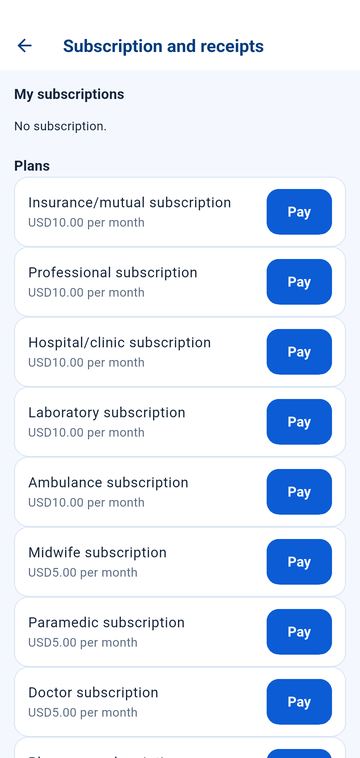
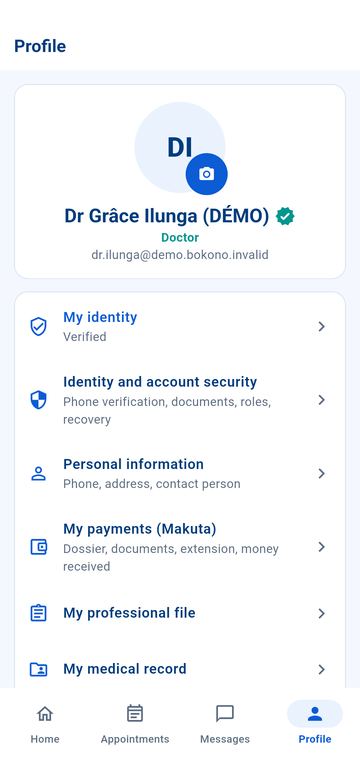
- Tap the Activate my subscription card on the home screen (or Payments, or Profile → Subscription and receipts).
- Under Plans, tap Pay next to the plan that matches your account; the monthly price is shown.
- Enter your mobile money number in international format (e.g. +243 81 234 5678), then tap Pay by mobile money.
- Approve the payment on your phone (message from your operator and your mobile money PIN).
- Return to Bokono and tap Check payment. Once the payment is confirmed, the subscription is active and your receipt appears in My receipts.
If the payment does not go through, no amount is recorded: you can try again. A payment already in progress must be completed or checked before starting another one.
My balance and Makuta dossier
Patients' payments for your services go through Makuta, Bokono's payment provider.
- Tap My balance: it is the first tile of your professional tools (or the Balance button at the top of the professional space).
- Available balance: the amounts received for you and not yet paid out. Below: the Total received and the list of Transactions (payment received, payout), with their status: received, pending, payout prepared, paid out, refunded…
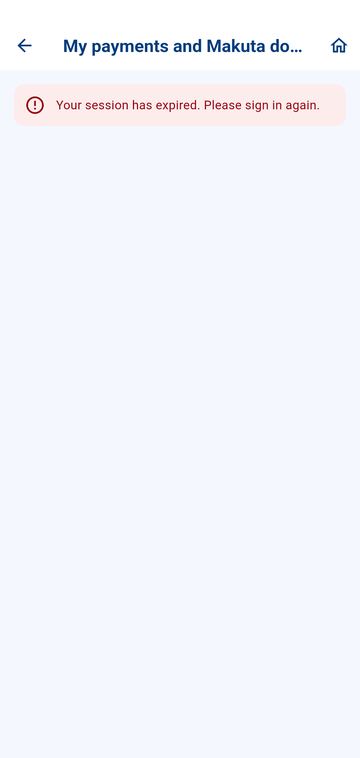
- The icon at the top right opens My payments and Makuta dossier. This dossier is created automatically when you sign up, from the documents already provided to Bokono. The screen shows money received, payouts, the dossier status (in preparation, under review, sent to Makuta, payment extension active, to be completed) and the status of each document (being verified by Bokono, verified by Bokono then by Makuta, correction requested, rejected — to be replaced).
- The To provide list shows missing documents. A rejected document or one needing correction is replaced in your professional application file: it is picked up automatically and goes back for review.
The dossier is only sent to Makuta after Bokono has verified your documents and an administrator has validated it. Bokono never asks for your mobile money PIN.
Help and support (Profile → Help and support)
The Frequently asked questions cover common situations. For anything else, tap Contact Bokono support, choose the subject (My account, Payment, Technical issue, Other question) and describe your request: the answer arrives in Bokono Connect. You can also write to support@bokono-rdc.net or call +243 850 655 988.
Important rules and frequently asked questions
- Never diagnose by message alone: if in doubt, consultation or emergency.
- The assistant's proposals (report drafts, summaries) are always reviewed and validated by you; it never decides for you.
- Your account is personal: one phone at a time, no sharing of password or code.
| Problem | What to do |
|---|---|
| My account is not open yet | The file is under review: My professional file shows the status and any corrections requested. |
| My university is not in the list | My institution or training is not listed, then type its name. |
| My facility is not in the list | Other — my facility is not listed: name, city, type. |
| My diploma shows "not verified" | Normal until Bokono has checked the attached copy. |
| I cannot see a patient's record | A care relationship and consent in force, or a confirmed appointment, are required. |
| Calls or messages do not arrive when the app is closed | Open Bokono: the "Required permissions" screen shows what is missing. Tap Turn on on each line (especially running in the background and auto-start). |
| The prescription signature fails | The prescription stays as a draft; try again. Nothing is sent to the patient until it is signed. |